Best Warzone PC Settings
Table of Contents
- Best Warzone PC Graphics Settings
- Sustainability
- High Dynamic Range (HDR)
- Accessibility Solutions
- Best Global Quality Settings
- Details and Textures
- Shadow and Lighting
- Environment
- Accessibility Solutions
- Best Field of View Settings
- Camera
- Volumes
- Audio Device
- How to get higher FPS in Warzone
- Why Call of Duty Keeps Restarting
These best PC settings are configured to maximize overall FPS while maintaining proper visibility for better performance.
The goal is to create a smooth, stutter-free, latency-free, and clear graphical view while reducing visual clutter and, hopefully, improving the ability to spot other players and aim.
Further along in this article, we’re also going to be discussing the reasons for each setting and how it can help you improve your Warzone gameplay.
Best Warzone PC Graphics Settings
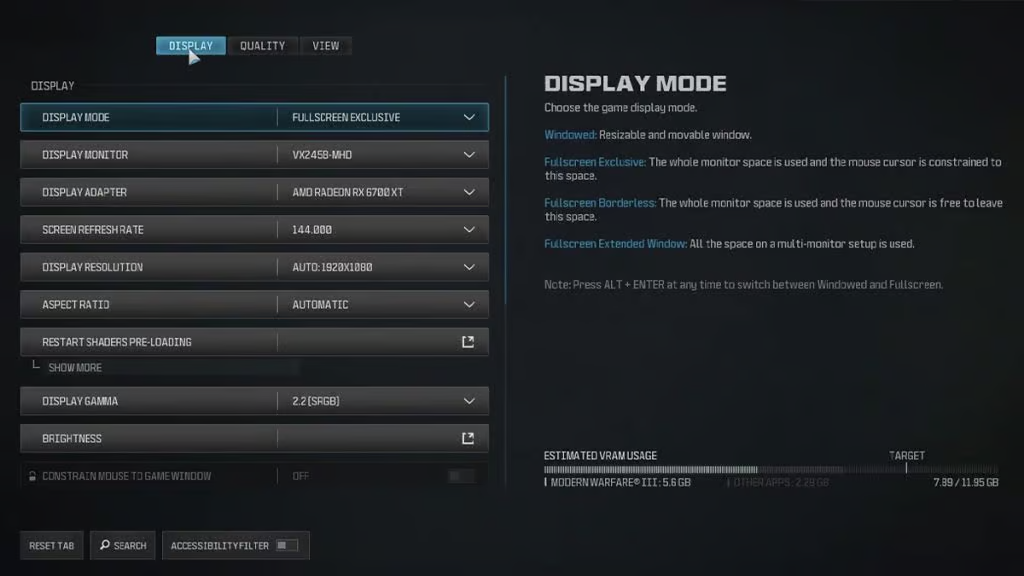
We set our Display Mode to Fullscreen Borderless. While it’s true that Fullscreen Exclusive offers a performance boost, after testing, we confirmed we only saw a 5-10% increase in overall FPS with the settings we’re using.
As such, we prefer the convenience of Fullscreen Borderless, especially when you use other applications in the background, such as while streaming or on a Discord call with friends.
Make sure to set your Display Monitor to your primary monitor.
Set your Display Adapter to your GPU.
The Aspect Ratio should be set to Automatic or to the Aspect Ratio your monitor supports.
Display Gamma and Gamma/Brightness are personal preferences and depend on your monitor and GPU settings.
NVIDIA Reflex Low Latency is set to On + Boost; there were issues with this setting on specific systems before. If you experience constant frame stuttering or frame drops, try turning this off. However, most systems should receive a decent performance boost with this on, particularly with responsiveness.
Sustainability
Turn off both V-Syncs, and set your Custom Frame Rate Limit to your Monitor’s Refresh Rate, in my case, this is 200. This helps stabilize your frame rate.
High Dynamic Range (HDR)
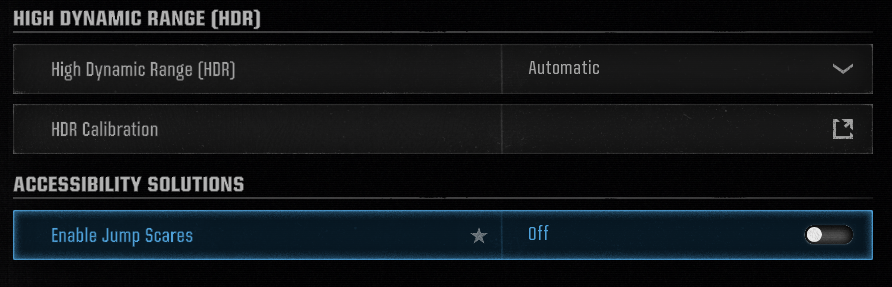
This is also subject to your own monitor’s settings. This affects how dark shadows are and how objects interact with dark environments. Adjust as needed to see objects clearly against a dark background.
Accessibility Solutions
Personal Preference, but the jump scares can throw you off your aim. Even if it doesn’t necessarily scare you, it adds unnecessary clutter on the screen, so I suggest turning it off.
Best Global Quality Settings
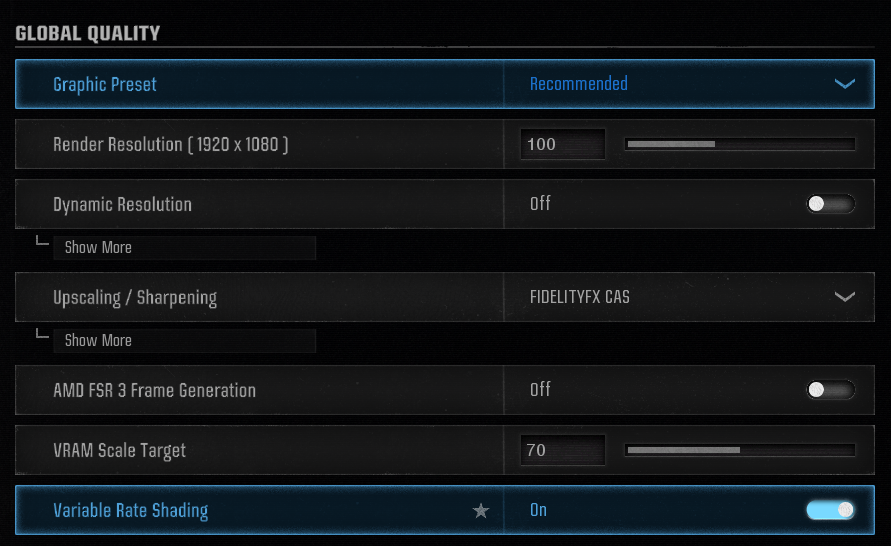
Render Resolution should be set to 100; there’s no point in going above this unless you’re aiming for better visuals in a cinematic video. Any value below 100 can make player models look blurry or pixelated, which may make it difficult to identify targets.
Dynamic Resolution should be turned off. This automatically adjusts your Render Resolution to meet a certain FPS. While this can drastically improve FPS, it also reduces visual clarity. This can create many graphical artifacts that harm your gameplay and make it challenging to differentiate far-away targets from terrain.
Upscaling/Sharpening varies from machine to machine; for most systems, FIDELITYFX CAS can provide a substantial performance increase with minimal impact on latency.
Variable Rate Shading dynamically adjusts the resolution near the edges of your screen. This causes minimal visual changes but drastically improves performance; definitely a must-enable setting.
Details and Textures
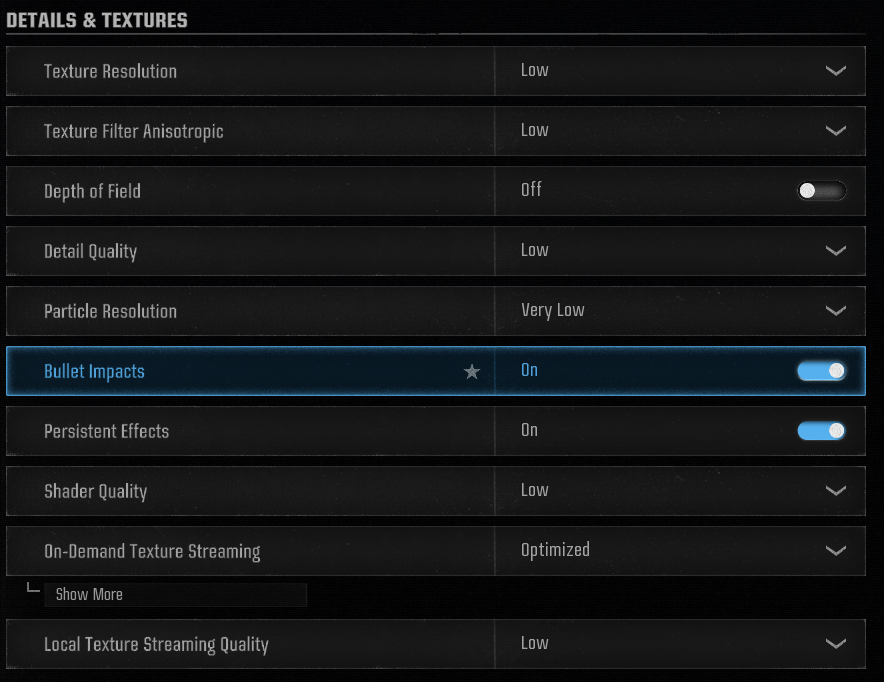
Texture Resolution and Texture Filter Anisotropic both affect the environment, making it sharper and more detailed. In our case, keeping them low helps keep framerates high without sacrificing visibility of important gameplay models (Enemies, loot, vehicles).
Depth of Field is a must-disable.
Detail Quality and Particle Resolution affect how certain gameplay artifacts look, primarily smokes and foliage. Keeping them at the lowest settings actually helps increase visibility through these obstacles, so this is very important.
Bullet Impacts is a must-enable. It helps track your bullet trajectory, especially while spraying, and lets you clearly see your spray pattern. This also enables you to see where enemy bullets land in your vicinity, which can help you figure out which direction they’re shooting from.
Persistent Effects is a tricky one. I recommend turning this OFF as this primarily affects explosions and smokes; however, I personally like leaving this on, as when paired with low particle resolution, it makes for very minimal visual clutter but still allows me to see where an explosion occurred better, which helps track recent engagements or where your grenade actually landed.
Shader Quality is set to low to squeeze as many frames as possible, but note that this will cause your game to look drastically worse. If you want your shadows to look nicer and your terrain to look more realistic, you can set this to Medium instead for a 10-20% drop in performance, depending on your system.
On-Demand Texture Streaming helps make textures sharper and crisper without a noticeable impact on performance. Set this to Optimized. Because this feature downloads high-quality textures while you play, it is vital to ensure your internet speed for gaming is sufficient to handle the real-time data transfer without causing latency spikes or stuttering.
Local Texture Streaming Quality adds miscellaneous objects to the terrain to enhance the environment; it's definitely not worth the performance dip, so set this to low.
Shadow and Lighting
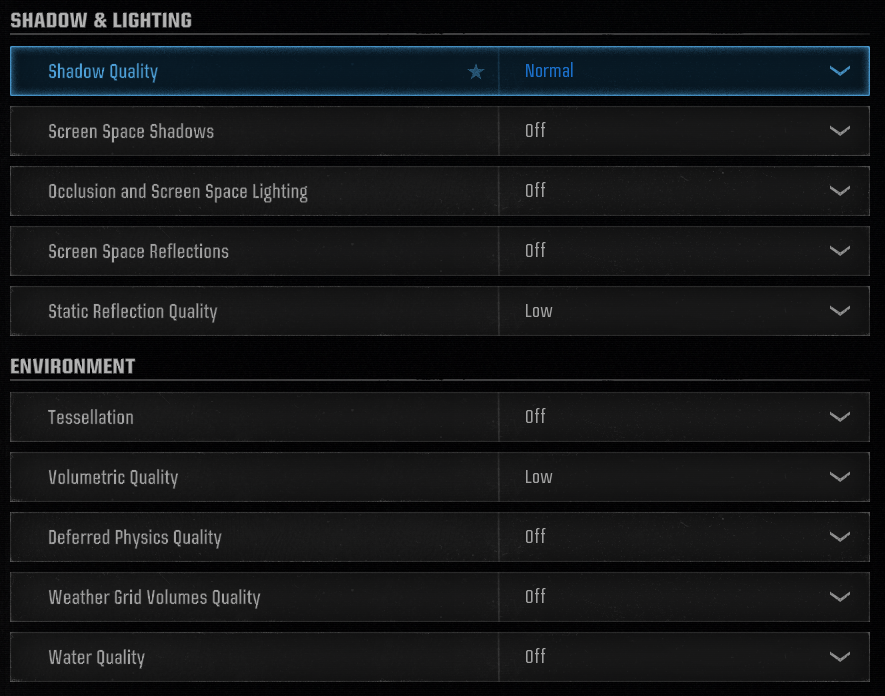
Shadow Quality should be set to at least Normal. This is the Goldilocks setting; anything lower causes player-made shadows to appear pixelated and blocky, which can drastically reduce their visibility. On the other hand, going above normal will cause a significant drop in performance for minimal gain, as most settings that go from normal to high will only make the shadows slightly darker and sharper.
Screen Space Shadows, Occlusion and Screen Space Lighting, Screen Space Reflections, and Static Reflection Quality should be set to off or their lowest settings. These affect only minimal shadows on minute objects in the environment and do not improve overall visual clarity in any way.
Environment
Tessellation has no visual effect on the game, nor does it improve or drastically reduce performance; it’s a weird setting that should be set to off.
Volumetric Quality affects fog when looking at the horizon, most noticeably when on top of tall buildings overlooking the battlefield. As such, turning this down actually improves visibility and performance.
Deferred Physics Quality, Weather Grid Volumes Quality, and Water Quality affect the visibility of objects in the water; however, testing shows they don’t actually affect it much at all, and turning them off actually increases performance, so keep these off.
Accessibility Solutions
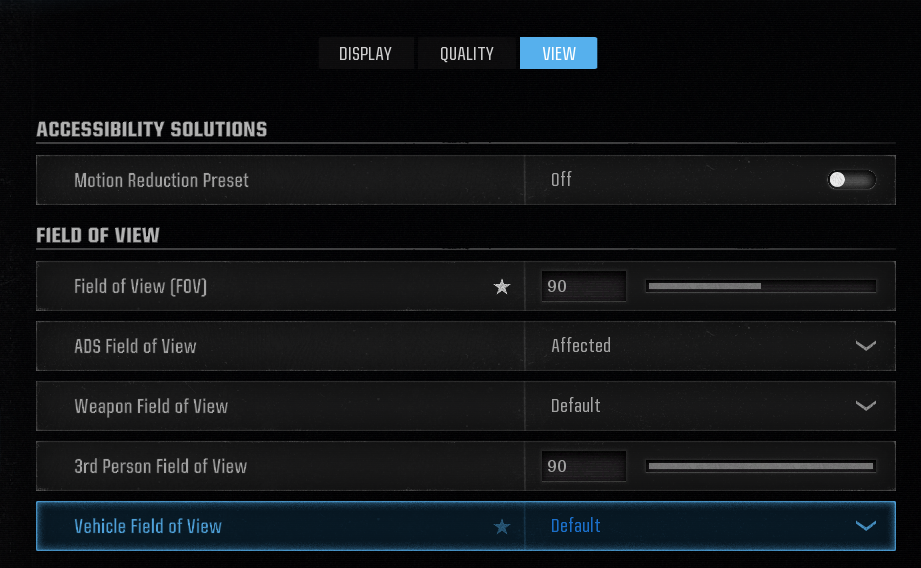
These settings are mostly a matter of personal preference. However, there are a few settings that can affect your gameplay more than others.
Best Field of View Settings
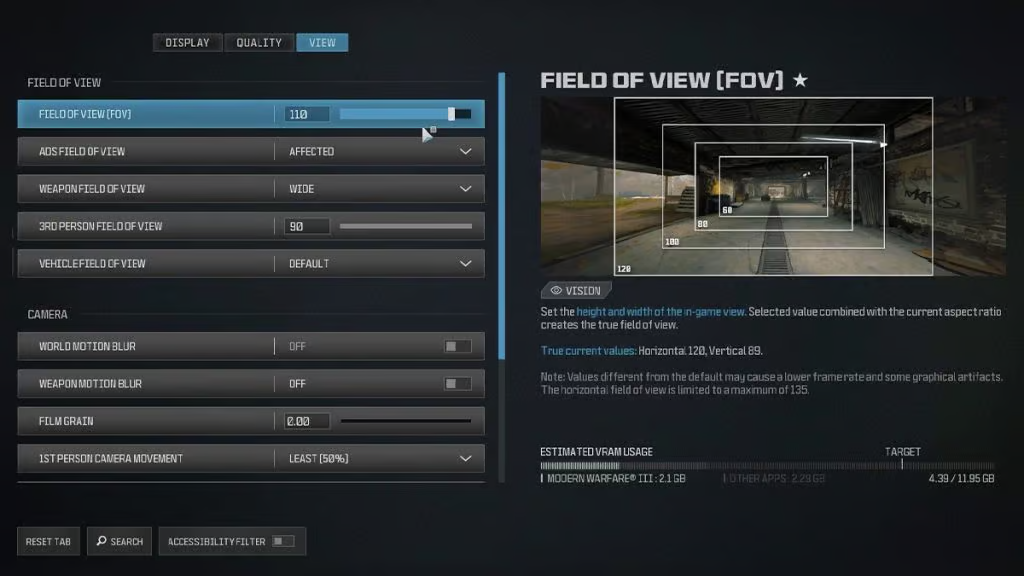
Field of View (FOV) is always a widely controversial topic. Most players agree that having a higher FOV does allow you to see more than a lower FOV player; however, this setting will not magically make you more aware of the various aspects of the game. Find the FOV that is most comfortable for you and stick with it. I personally run a low FOV of 90.
Camera
Both Motion Blur options (World Motion Blur and Weapon Motion Blur) should be set to off, as these just create unnecessary visual clutter on the screen.
Inverted Flashbang is optional. I like playing the game in my room with the lights off, so having the flashbang be a dark highlight instead of a blinding white actually makes it a lot easier on my eyes. Adjust this as you see fit.
Volumes
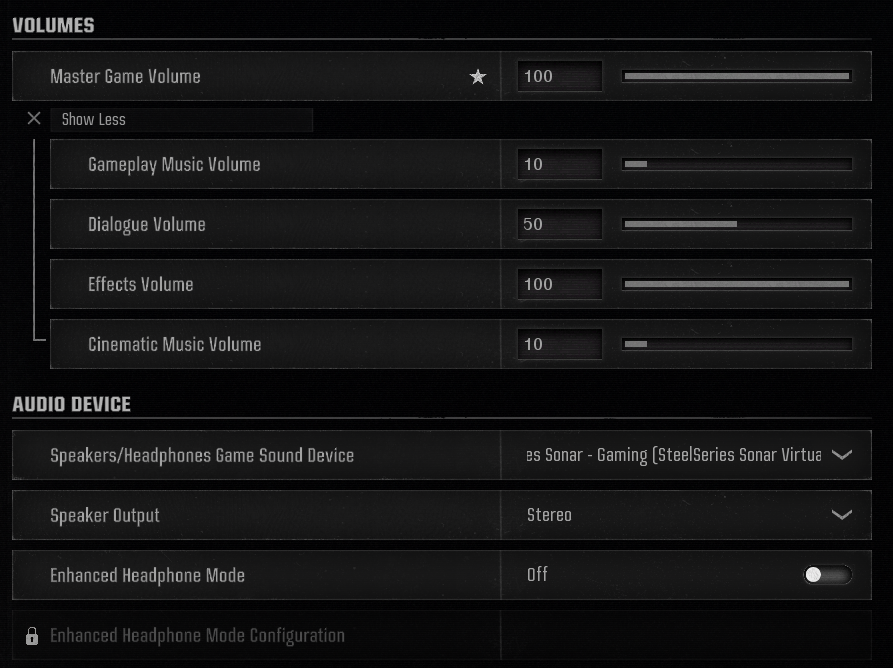
The following settings affect game volume. Since Warzone is a competitive shooter, audio cues are critical, including footsteps, gunshots, and grenades.
Master Game Volume should be set to 100 so we can balance the rest of the settings ourselves.
Gameplay Music Volume should be lowered or muted, unless you really enjoy it.
Dialogue Volume is set to half; we don’t need to hear this all the time, but specific audio cues, such as knowing that a loadout is dropping, or the circles closing in, or your teammates pinging something, can help drastically in gameplay.
Cinematic Music Volume is the same deal as Gameplay Music; you can leave this super low or off.
Effects Volume is the most essential audio setting. Set this to 100 and adjust your Master Game Volume as needed till it sounds just right for you.
Audio Device
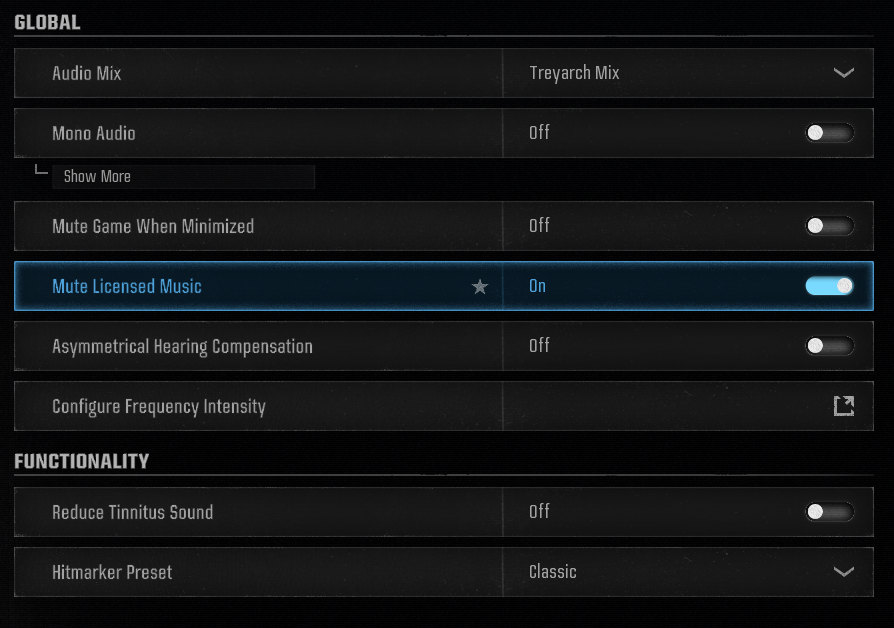
This setting is essential because it helps you access directional audio on your device, a vital part of Warzone's mechanics.
Since I use a separate audio software, I don’t need to use Warzone’s own audio software.
However, for players who do not use audio software. I suggest turning Speaker Output to Surround 7.1, while keeping Enhanced Headphone Mode off. This will provide you with more accurate directional audio to help you pinpoint those pesky snipers.
Additionally, if you’re a streamer and want to use the in-game music as your background, make sure to tick Mute Licensed Music to On to avoid any DMCA violations.
Additionally, you need to turn off the default audio enhancement that Windows typically has enabled. To do this, go to System > Sound, then click on your default audio device in the Output category.
Then set Audio Enhancements, and/or Spatial Audio both to off.
How to get higher FPS in Warzone
Start by optimizing your in-game display and quality settings as recommended above. If you’ve tweaked those and still need more frames, try these steps:
- Update your drivers: Download the latest updates directly from Nvidia, AMD, or Intel
- Close background apps: Browsers like Chrome eat up a lot of RAM and CPU. Closing them frees up resources that Warzone desperately needs.
- Upgrade your hardware: If all else fails, it might be time for a new graphics card. It’s the expensive route, but a better GPU is the surest way to get a massive performance jump.
Why Call of Duty Keeps Restarting
If you play CoD on PC, you’re almost certainly familiar with the dreaded “Update Requires Restart” loop. While it is annoying to watch the game close and reopen right when you want to play, there is a valid technical reason for it. Whenever developers push a hotfix or patch, the game physically cannot rewrite its own code while it is running. It has to shut down momentarily to apply those files, ensuring you are on the latest, most stable version. It’s a necessary evil, so patience is your best bet here.
Once the update clears, focus on maximizing your advantage. Combining your optimized graphics settings with the current meta weapons is the best way to dominate the lobby. You should also look into tuning your audio and controller settings; having the right sensitivity and being able to hear footsteps clearly gives you a massive competitive edge in Battle Royale.
Arlo is a gaming content writer and analyst covering League of Legends, Valorant, and competitive esports strategy.
All articles by ArloTurn knowledge into rank
Get a verified pro to review your gameplay and give you a plan.