Best Apex Legends Settings
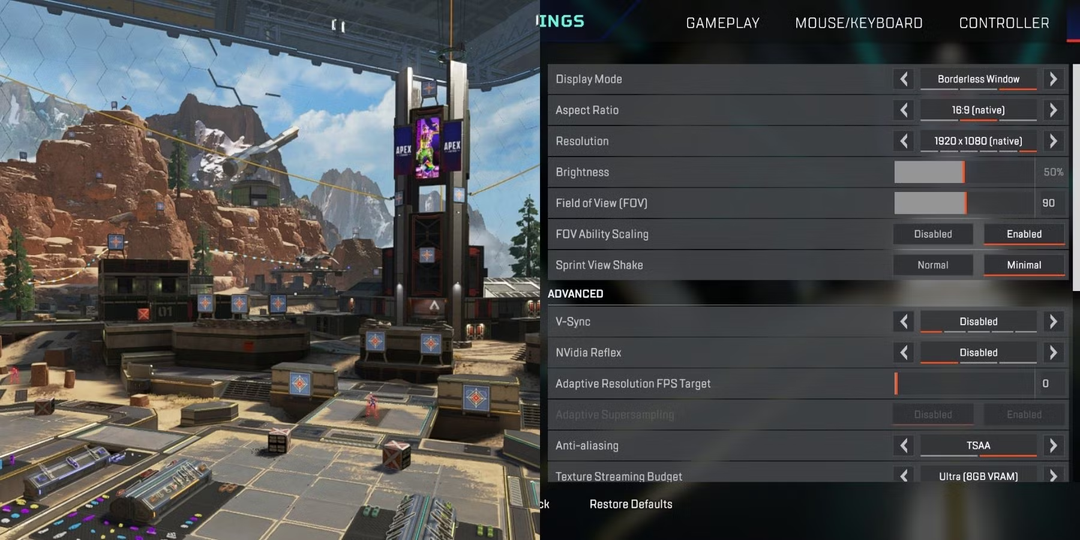
Table of Contents
- Graphic and Display Settings
- Best Graphics Settings for Apex Legends
- Gameplay Settings: Comfort, Visibility, and Control
- Controller and Mouse Settings
- Best Audio Settings for Apex Legends
- How to Optimize Apex Legends Settings
- Best Settings For Competitive and Casual Play
- Settings Used by Apex Legends Pros
- Final Tips for the Best Apex Legends Setup for You
Do you want smoother matches, higher fps, and better gameplay in Apex Legends? Here are some pro tips about Apex Legends settings that'll make a massive difference, whether you're on PC or console. This guide will talk about display settings, audio, graphics, and more, so you can experience the best performance every time you play Apex Legends.
Graphic and Display Settings
The first settings you should adjust are your video settings, as they significantly affect your FPS, input delay, and overall responsiveness, helping you boost performance.
Aspect Ratio and Resolution
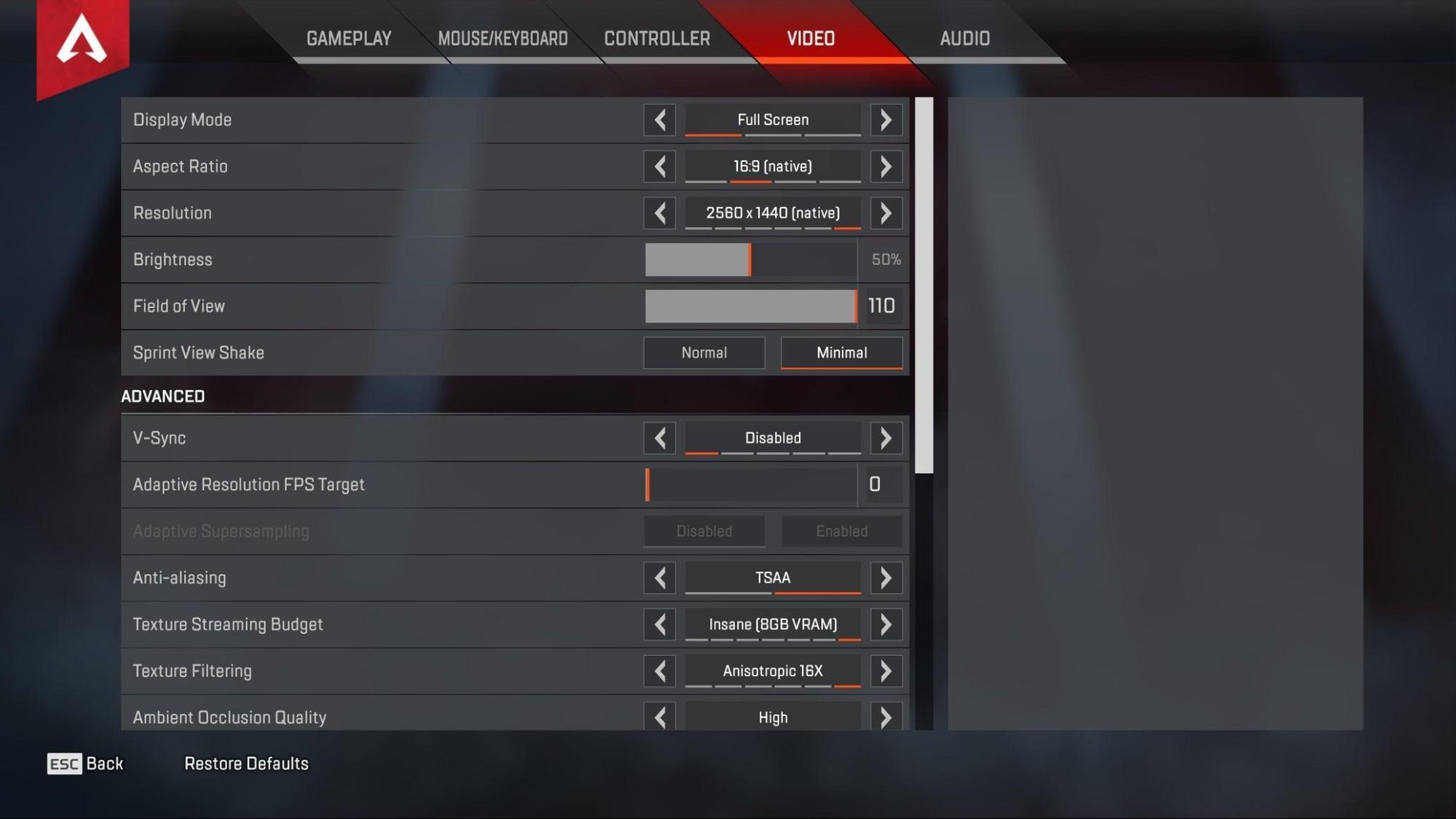
For good vision, use your monitor's resolution. If you want to increase your performance, then lower your resolution, but it also lowers your image quality. But if you want higher fps, you can run an adaptive resolution target.
Typical Setup:
- 1080p (1920×1080) – Best balance for fps and clarity
- 1440p – Sharper visuals but requires a stronger GPU
Refresh Rate
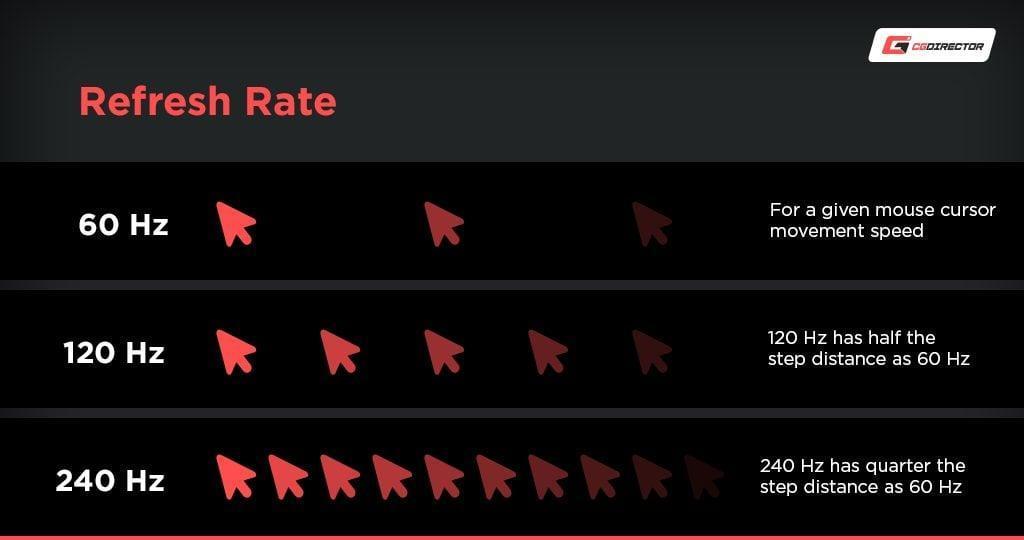
Apex supports high refresh monitors, so set your refresh rate to the highest option. This helps reduce input lag and makes enemy tracking easier.
V-Sync
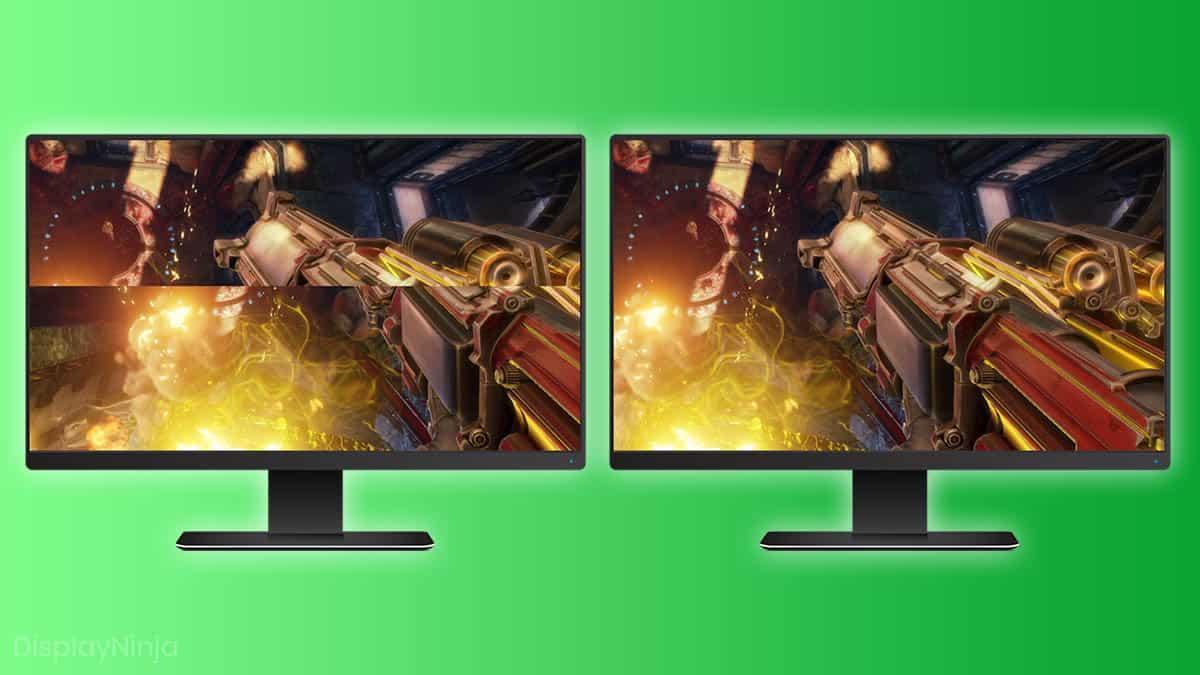
Turn V-Sync OFF. It adds input delay and reduces responsiveness, especially in a competitive match
Field of View (FOV)
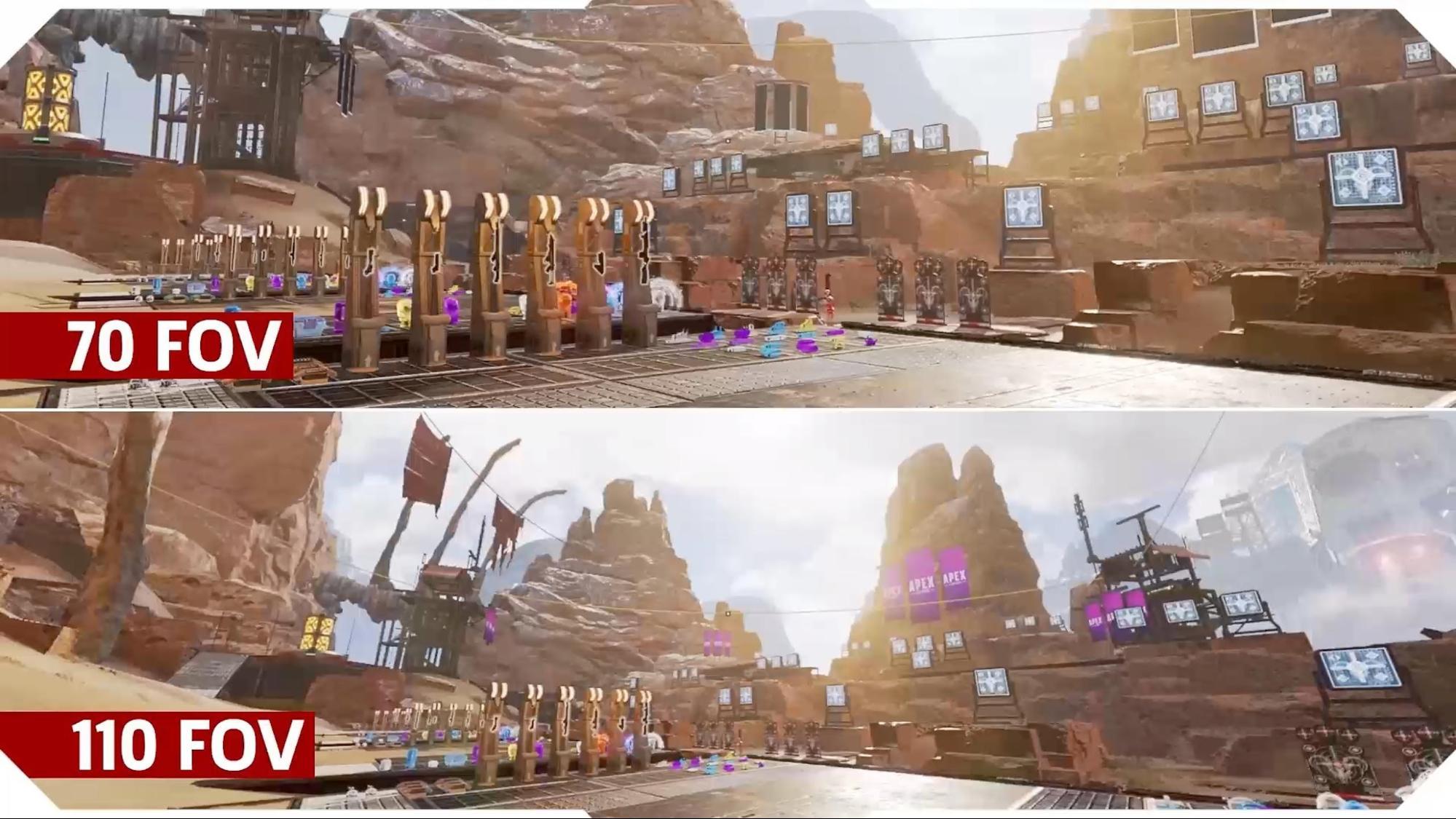
Field of View talks about how well you can track your opponents in a pressure-inducing fight.
Recommended: 96–110 FOV
- Higher FOV = better awareness
- Lower FOV = slightly better aiming consistency
A lot of pros use 100-110 because it keeps your targets in your line of sight without making them too small to see.
Best Graphics Settings for Apex Legends
Using the best graphics settings for Apex Legends can either put you at an advantage or disadvantage.
Texture Streaming
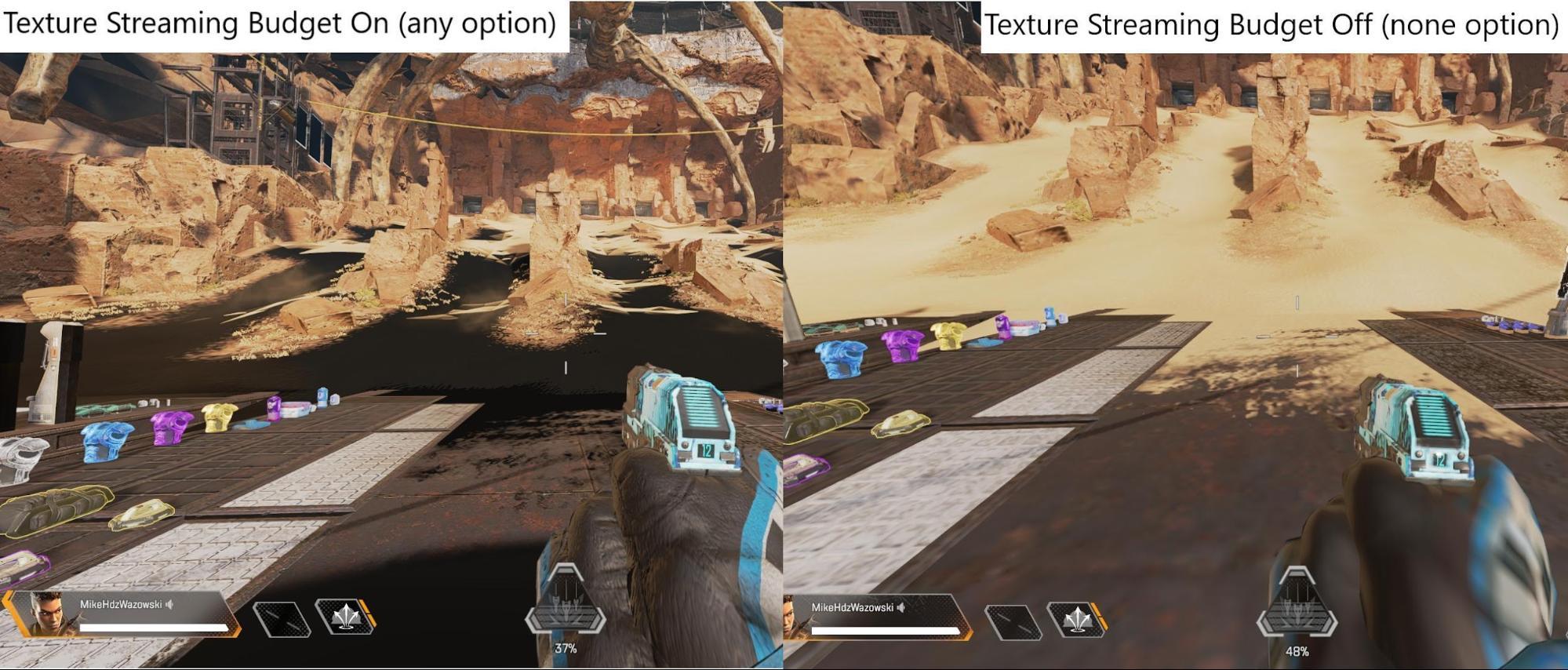
Set this based on your VRAM. Low VRAM means low settings, and medium is safe for high VRAM. Higher settings don't improve competitive gameplay much.
Anti-Aliasing
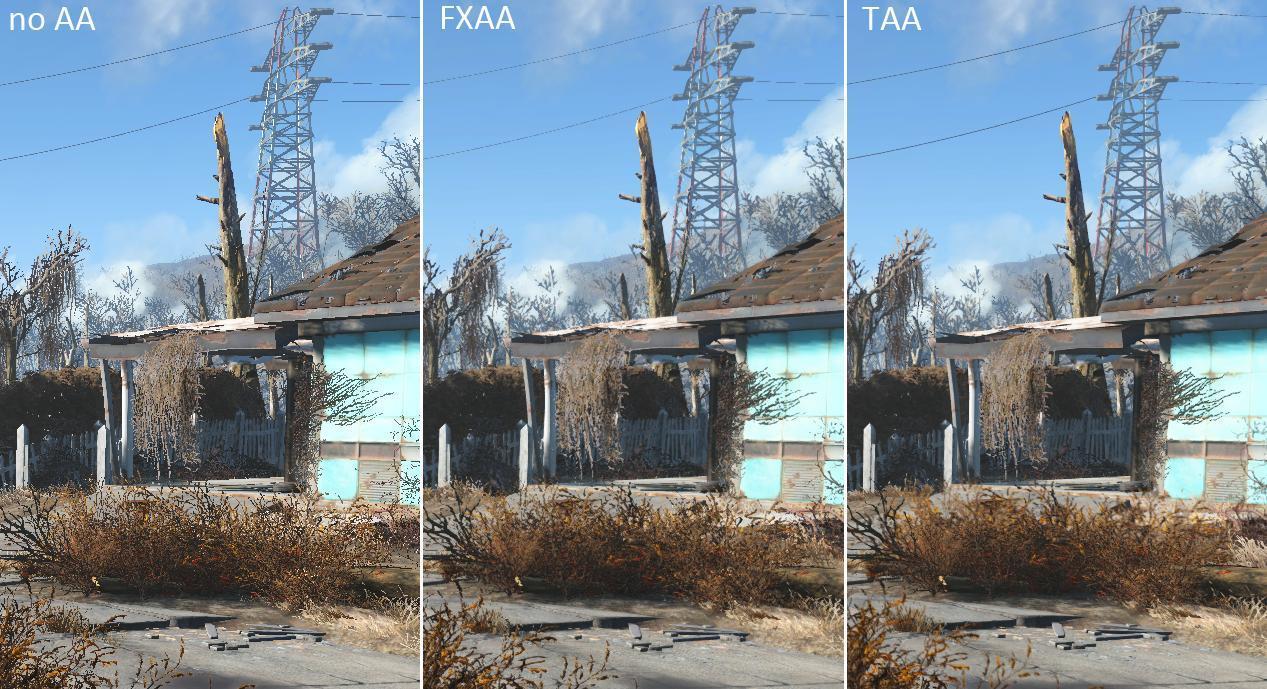
Turn anti-aliasing to None or TSAA.
- TSAA is cleaner but costs fps.
- None gives top performance.
Ambient Occlusion Quality

Turn OFF. It's a performance-heavy option with little competitive value.
Sun Shadow Coverage and Detail
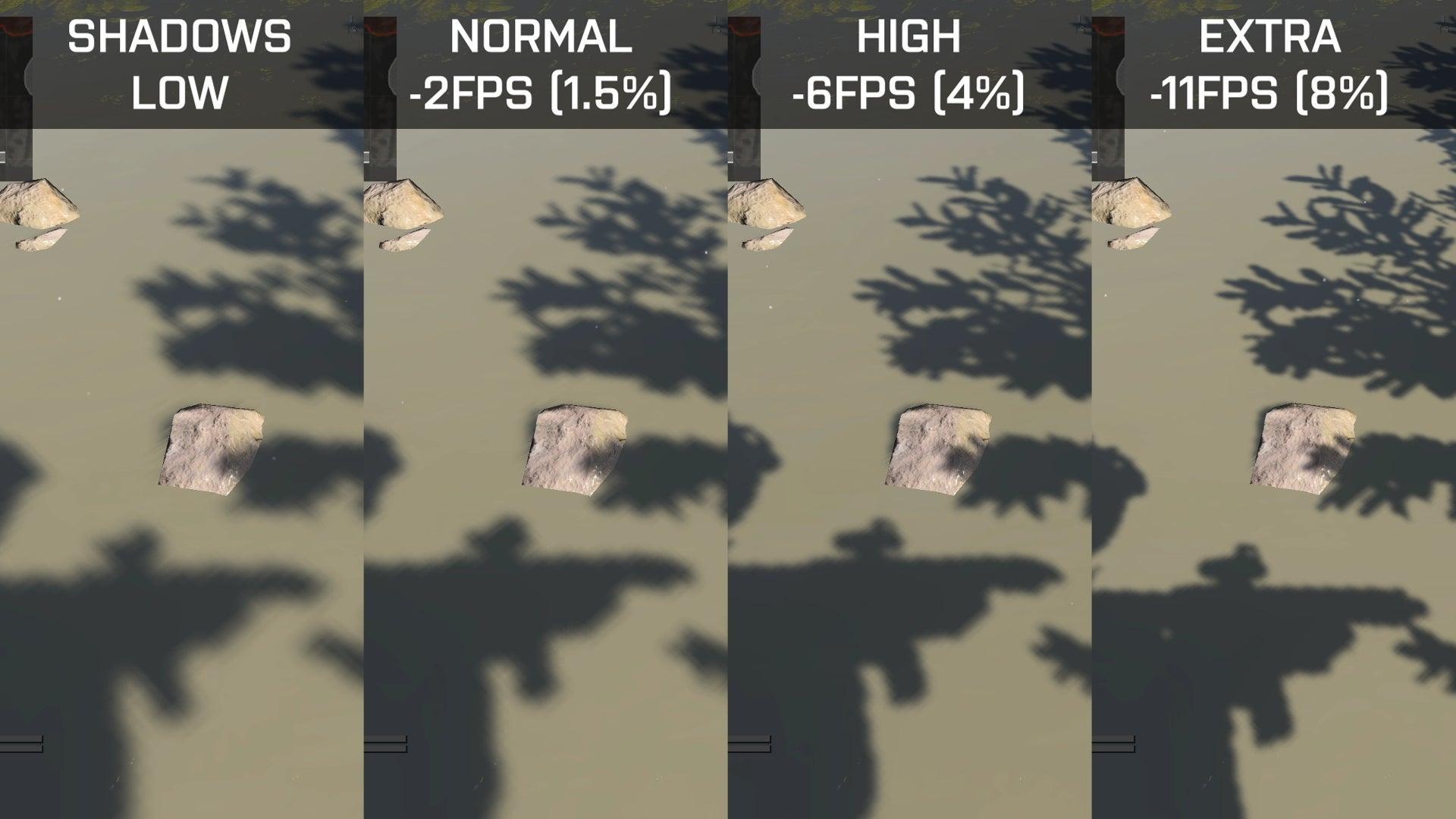
Set both to Low. Shadows look nicer on high settings, but lower your fps significantly.
Model and Effects Detail
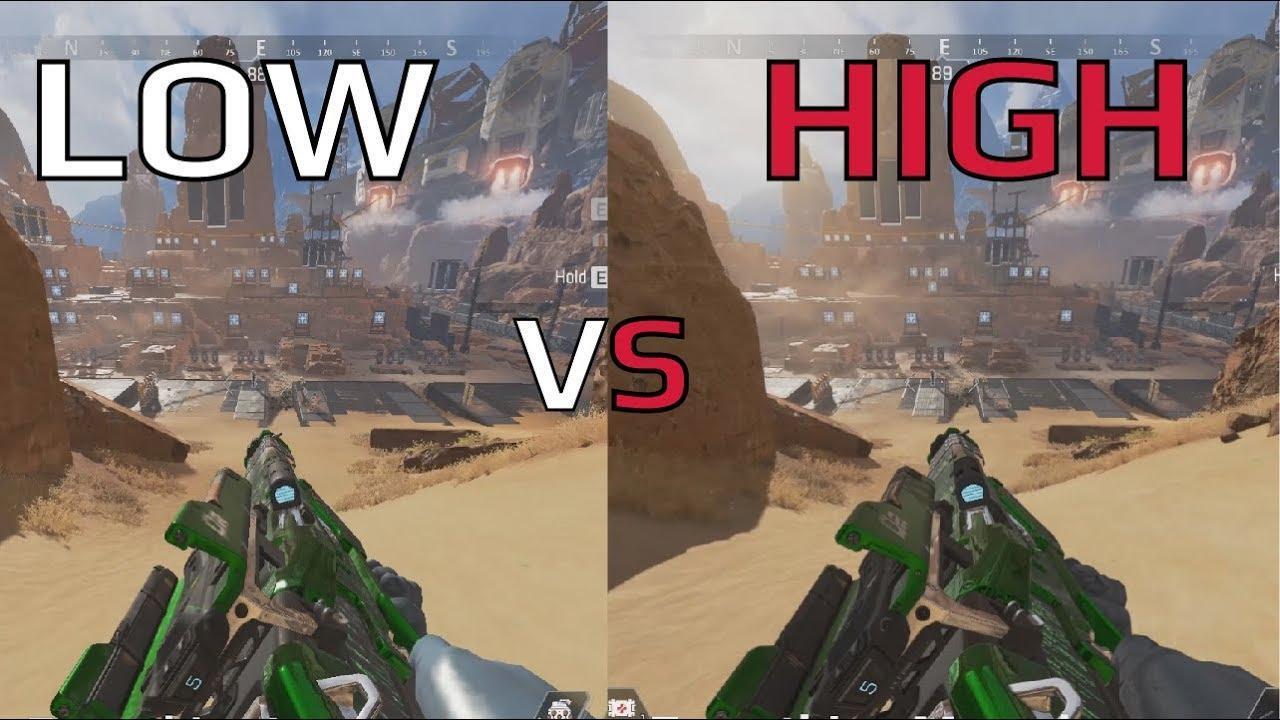
Set to Low or Medium. Higher settings add unnecessary visual noise.
Impact Marks and Ragdolls
Low settings keep your screen clean during fights.
Gameplay Settings: Comfort, Visibility, and Control
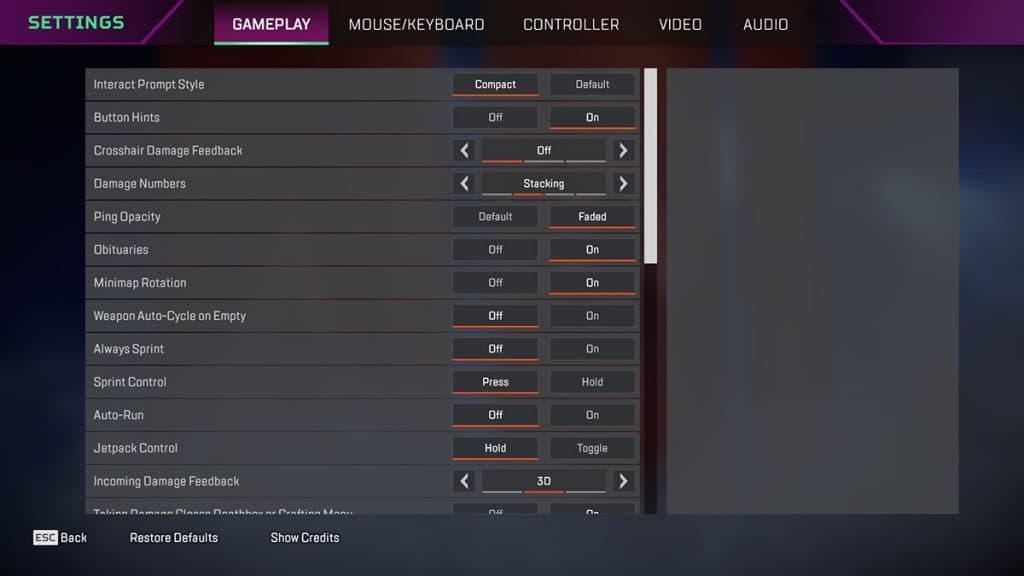
Your settings can influence how the game feels and responds to your inputs. These don't do much to your FPS, but they'll affect your comfort and movement.
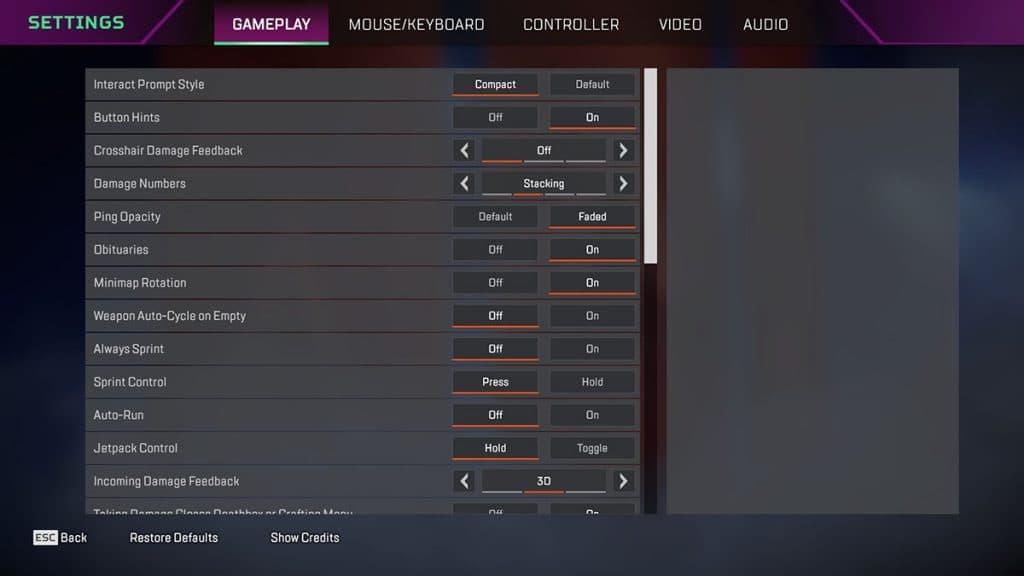
Damage Numbers
Set to Stacking for cleaner tracking.
Auto-Sprint
Turn ON if you want smoother and more efficient movement.
Incoming Damage Feedback
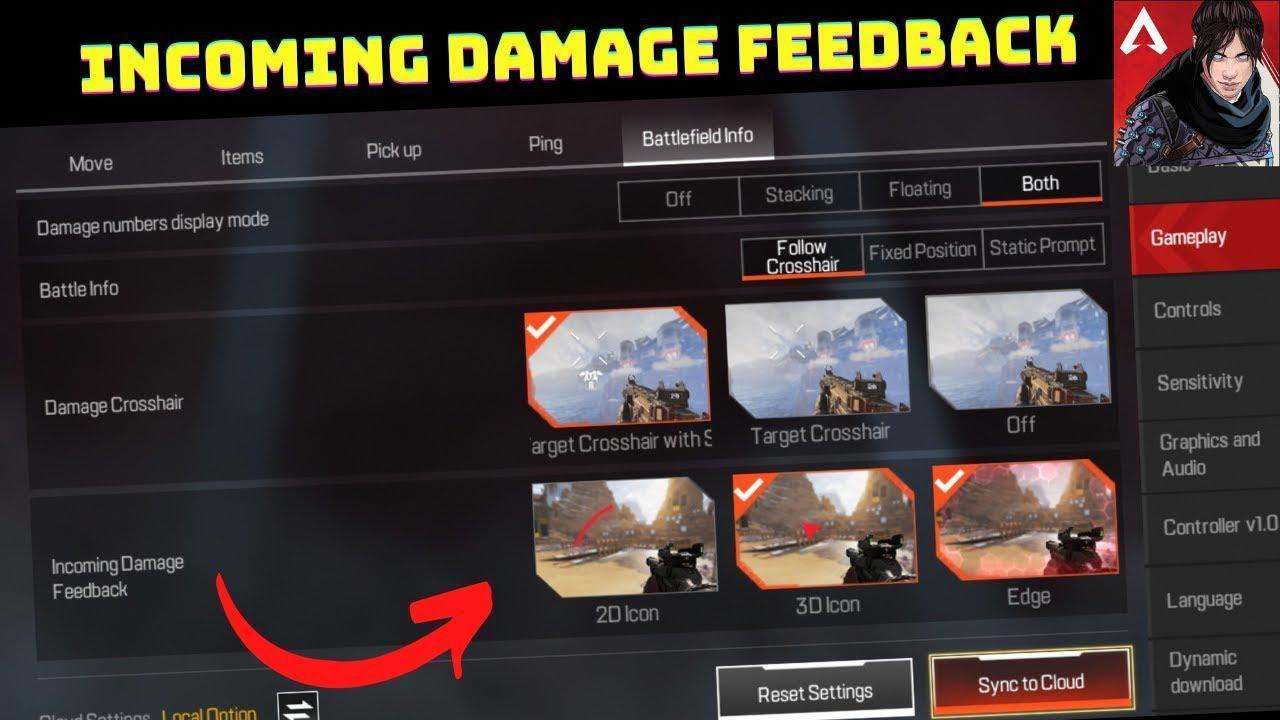
Set to 3D for clearer hit awareness.
Controller and Mouse Settings
Your settings here will greatly affect your aim, recoil control, and overall accuracy. These settings again don't directly impact your frames, but they'll change your whole gameplay.
Mouse Sensitivity
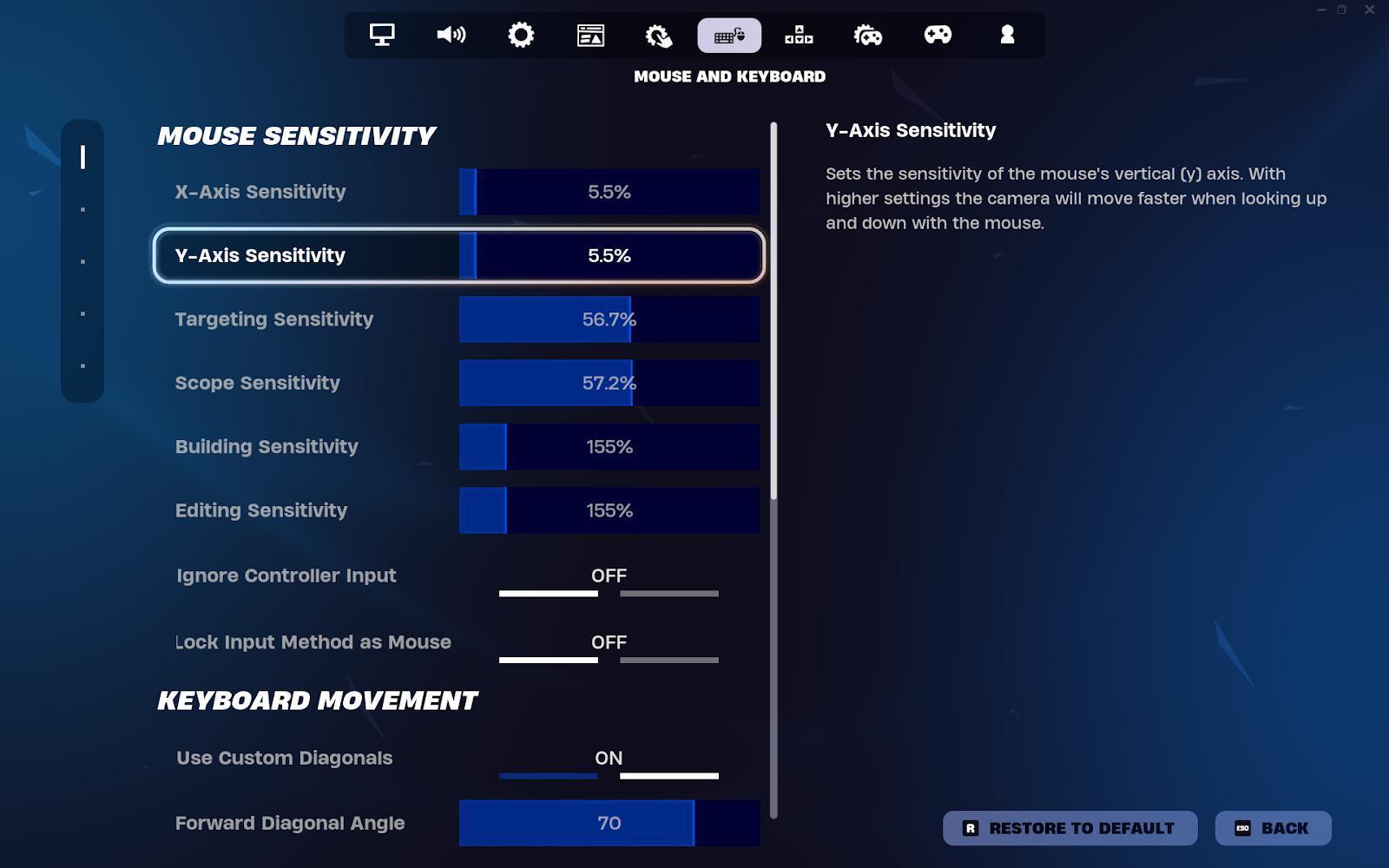
There's no “perfect” sensitivity, but beginners benefit from lower settings:
- DPI: 400–800
- In-game sensitivity: 1.2–2.0
Lower sensitivity equals better aim control.
Controller Settings
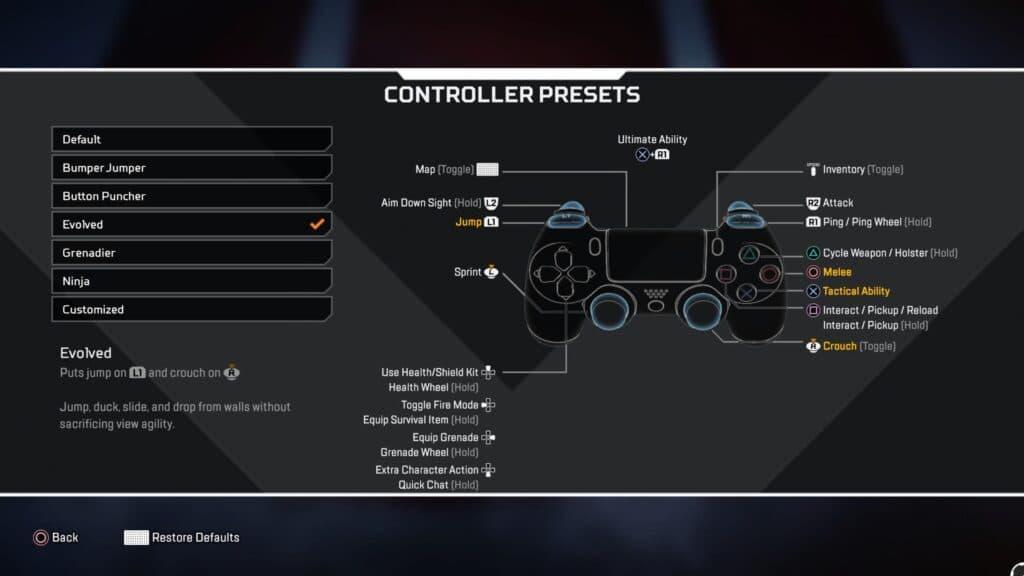
Adjusting deadzones and response curves is essential:
- Look Deadzone: Small Movement
- Deadzone: Small Response
- Curve: Classic / Linear
Advanced Look Controls (ALC)
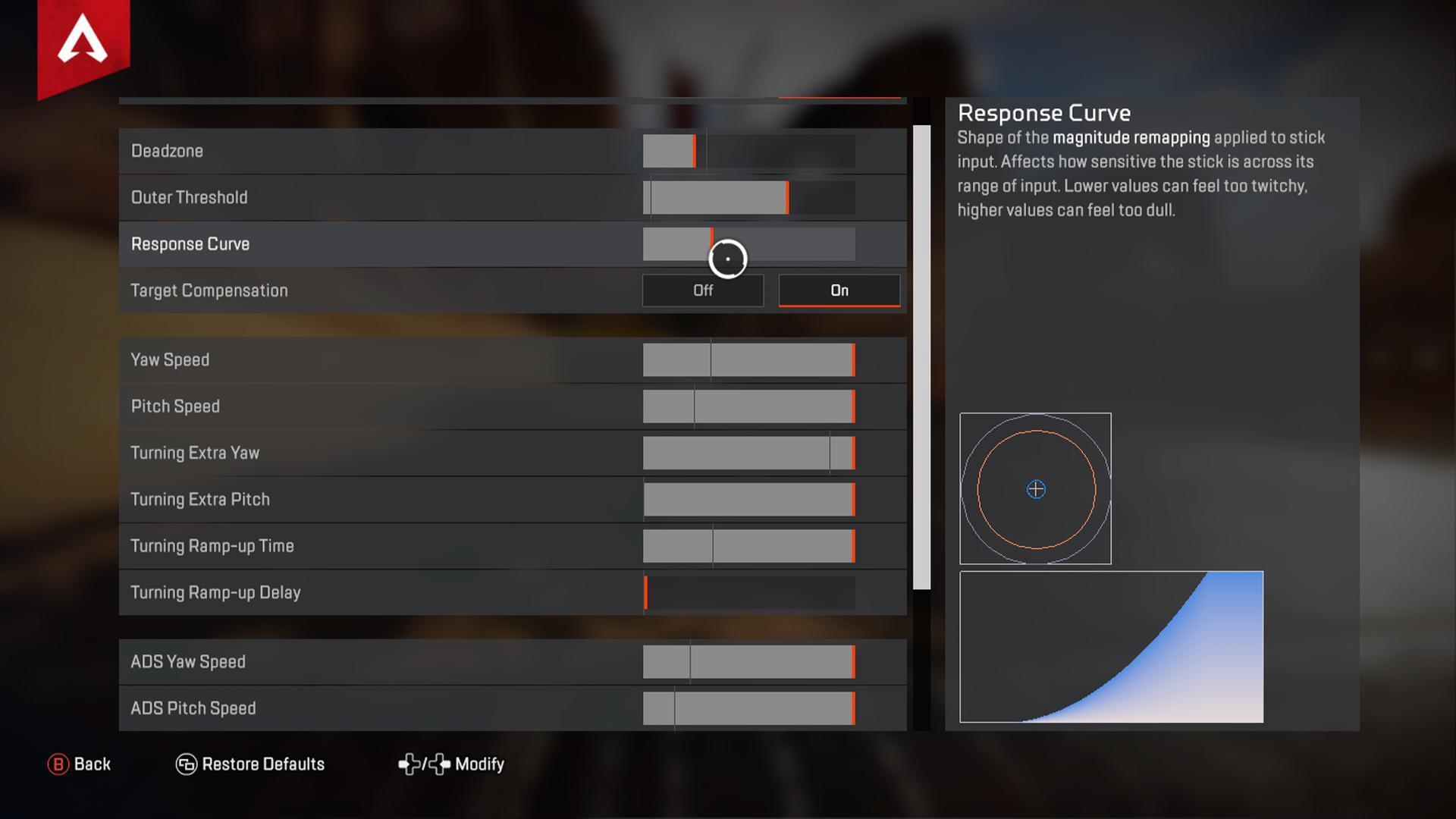
Advanced players can customize:
- Yaw speed
- Pitch speed
- ADS sensitivity
Use these only if you’re comfortable experimenting.
Best Audio Settings for Apex Legends
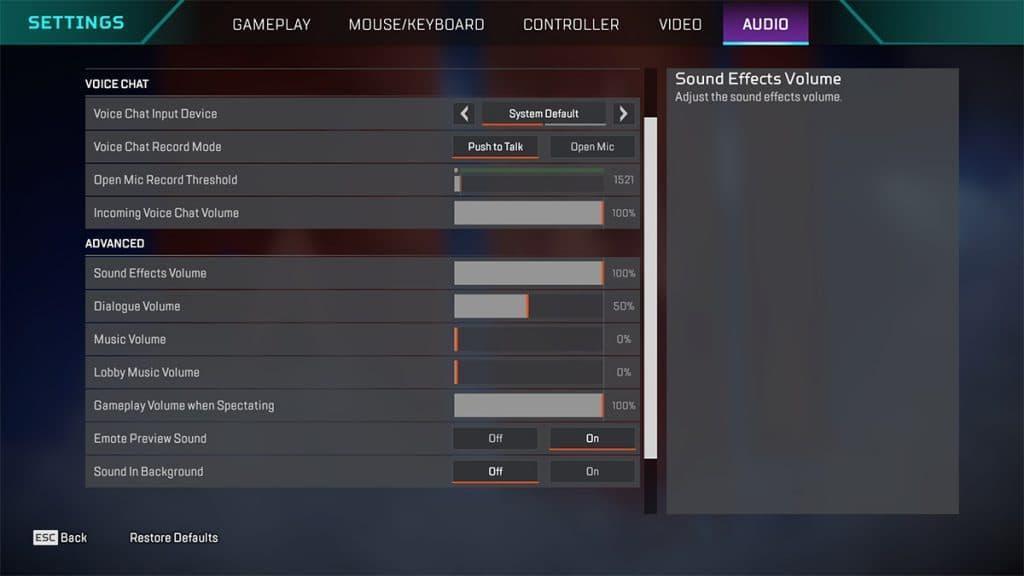
Better, clearer audio improves your reaction time, especially in ranked matches.
Sound Effects Volume
Set it to a perfect enough volume to hear footsteps clearly.
Music and Dialogue
Turn this off to avoid distraction.
Audio Quality
High quality is recommended unless your system struggles. Footstep clarity is very important for your performance.
How to Optimize Apex Legends Settings
Optimizing your settings is the most important step in fixing your overall settings. These are the additional tweaks you can do to make your game performance better.
- Disable Adaptive Resolution - This prevents the game from changing resolution during fights.
- Use Full-Screen Mode - Full-screen reduces input lag and gives cleaner fps performance, which helps with the overall performance of the game.
- Lower Background Processes - Close apps like Chrome, Discord overlays, or unnecessary software.
- Update GPU Drivers - Often boosts fps in newer game versions and significantly impacts performance
- Run the Game on an SSD - Faster load times and fewer stutters.
Best Settings For Competitive and Casual Play
These two are different in their own ways.
For Competitive Play
- Putting high FPS first
- Lower visual clutter
- Use a consistent mouse setup
For Casual or High Quality
- Higher textures
- Higher models
- Better lighting
Note that visual improvements may reduce your frame rate.
The safest option is to find the optimal settings that deliver a smooth game experience with decent visuals.
Settings Used by Apex Legends Pros
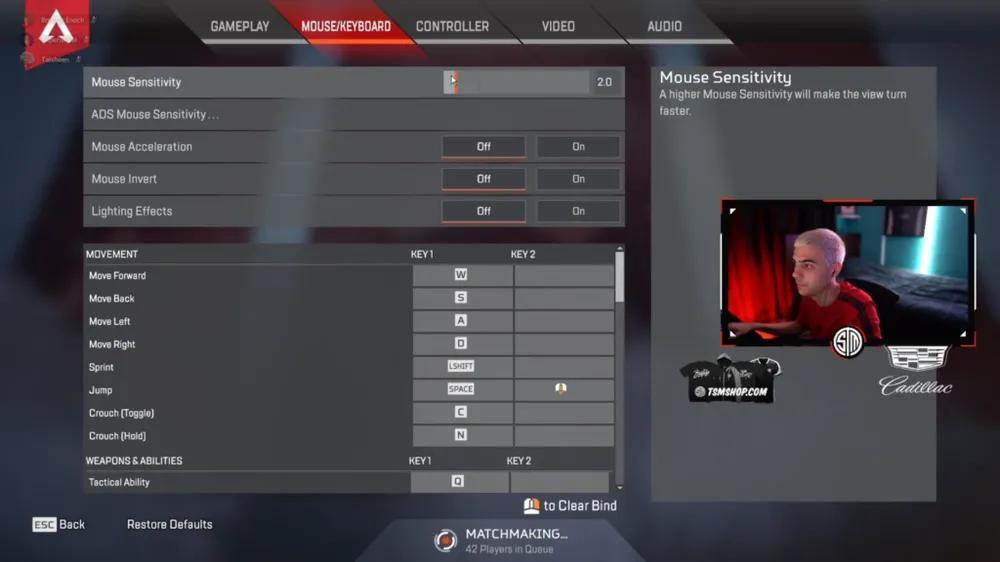
You’ll notice that most professional players prioritize:
- Low graphics
- High FOV
- Highest refresh rate
- No V-Sync
- Lower mouse sensitivity
This setting ensures optimal output for your overall gameplay and also adds an adaptive resolution FPS target if you want.
Final Tips for the Best Apex Legends Setup for You
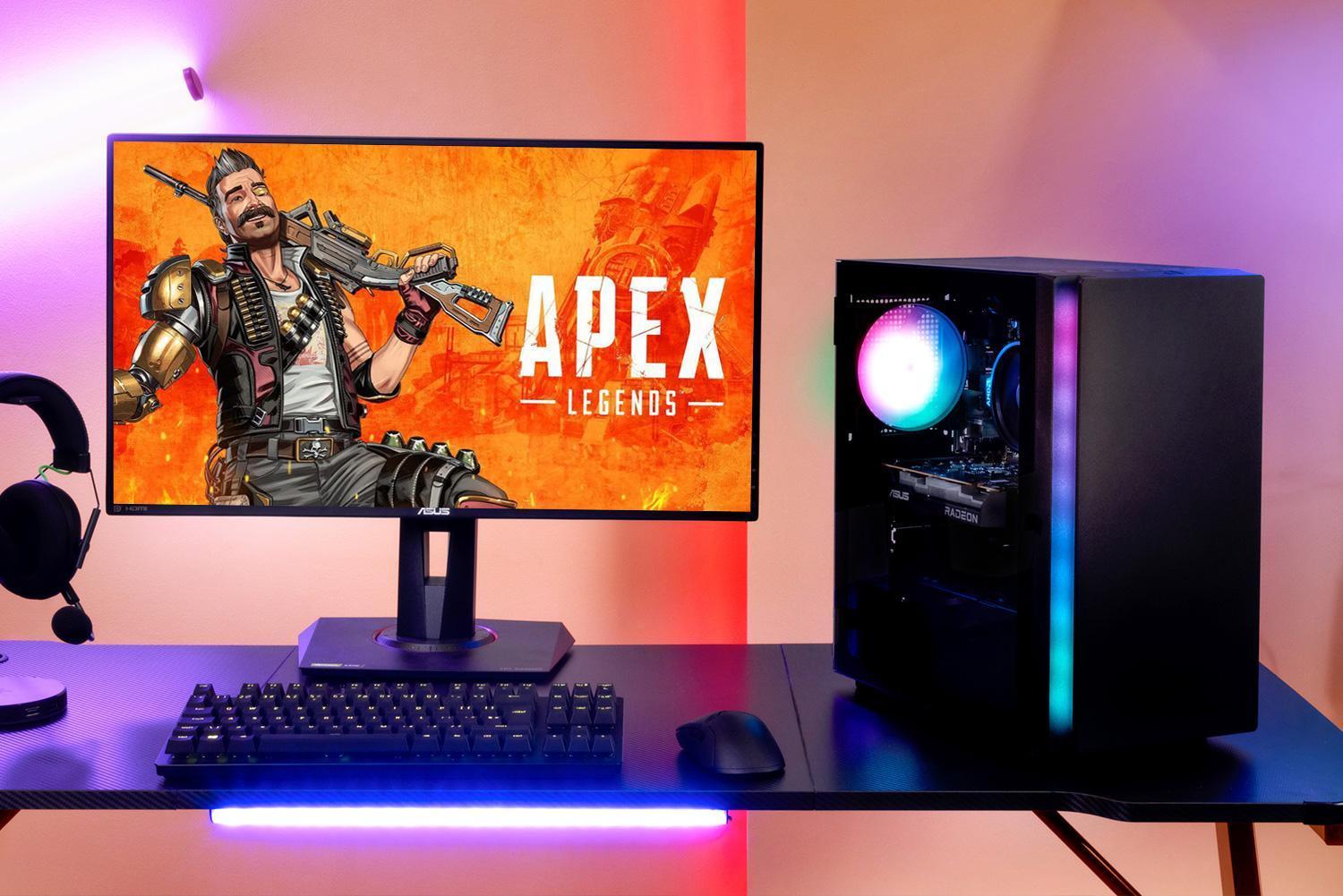
There's no such thing as one-size-fits-all apex settings in this game. Your whole setting depends on your preferences and wants as a player. But fine-tuning performance and optimizing your overall graphics display will only give you advantages.
To summarize:
- Optimal graphics settings can increase FPS
- Choose a comfortable mouse sensitivity or controller setup
- Improve visibility with the right FOV
- Use audio and gameplay settings to boost awareness
- Balance your settings based on competitive or casual goals
Arlo is a gaming content writer and analyst covering League of Legends, Valorant, and competitive esports strategy.
All articles by ArloTurn knowledge into rank
Get a verified pro to review your gameplay and give you a plan.