How to Change Language in League of Legends

Table of Contents
Maybe you're learning a new language and want full immersion while gaming. Maybe the Japanese voice lines just hit different. Or maybe you moved regions, and now your entire client is stuck in a language you can't read. Whatever the reason, you're here because League of Legends doesn't make this as easy as it should be.
Here's the thing: there are actually two separate settings. One controls your Riot Client: menus, buttons, all the interface stuff. The other controls in-game audio, like champion voices and announcer lines. Changing one doesn't change the other, which often catches players off guard.
Let's walk you through how to fix both.
Changing the Riot Client Language
Changing the client language in League is straightforward and doesn't require any file modifications, or League server changes. Here are the steps:
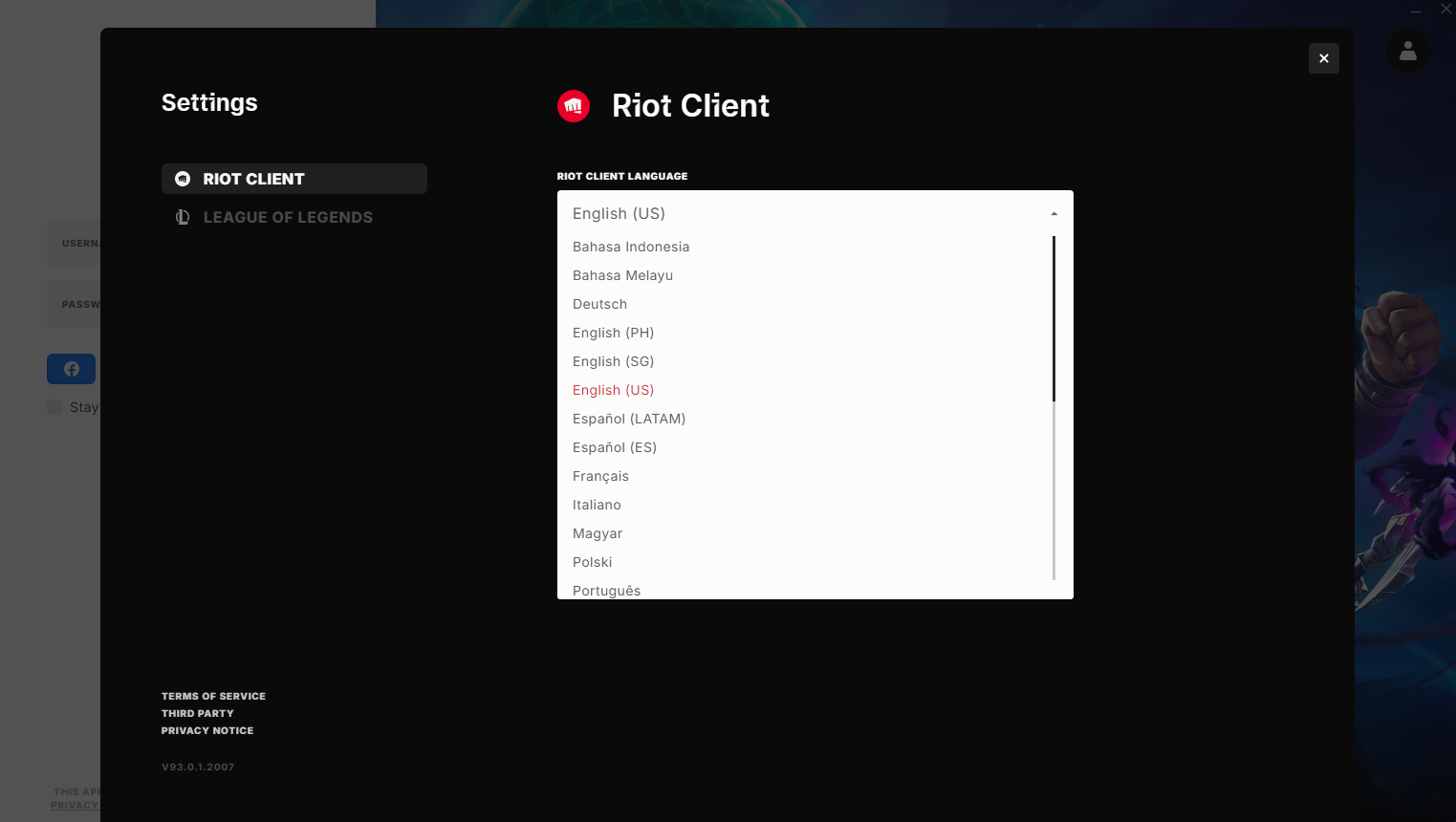
1. Open the Riot client and make sure you're logged out of your account.
2. Click on the profile icon at the top right corner.
3. Go to "Settings."
4. Find the "Riot Client Language" option.
5. Choose your preferred language from the list, such as English, Japanese, French, German, and many more.
Changing In-Game Language
You'll need to tweak some game files if you want to change the in-game LoL language. It is common knowledge that modifying game files is against Riot's terms of service, but it is unlikely that any action will be taken against your account since it doesn't give you any gameplay advantage. With that out of your concern, here are the six steps to change the language in League:
1. Open the League of Legends installation directory (default is C:/Riot Games/League of Legends, but it may vary if installed elsewhere).
2. Right-click on "LeagueClient" and create a shortcut, then drag this shortcut to your desktop.
3. Right-click on the shortcut and select "Properties."
4. In the "Target" field, add a space after the existing text and type –locale=X (you can replace X with the desired language code).
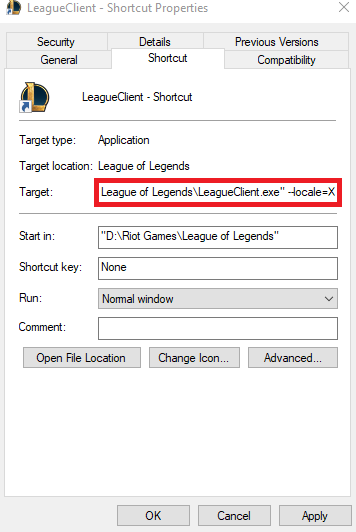
5. The modified target field should look something like this: "D:\Riot Games\League of Legends\LeagueClient.exe" –locale=X
Here are some of the language terminology codes you can use:
- Japanese: ja_JP
- Korean: ko_KR
- Chinese: zh_CN
- Taiwanese: zh_TW
- Spanish (Spain): es_ES
- Spanish (Latin America): es_MX
- English: en_GB, en_AU, en_US
- French: fr_FR
- German: de_DE
- Italian: it_IT
- Polish: pl_PL
- Romanian: ro_RO
- Greek: el_GR
- Portuguese: pt_BR
- Hungarian: hu_HU
- Russian: ru_RU
- Turkish: tr_TR
For example, if you want to set the game to ja_JP, your target should look like: "D:\Riot Games\League of Legends\LeagueClient.exe" –locale=ja_JP
6. Apply the changes and use the shortcut to launch League with your chosen language.
It's recommended to keep the League of Legends language settings to your native language in case any issues or bugs come up.
Current Limitations
Riot Games has mentioned the challenges in fully customizing languages, particularly for in-game voiceovers, due to the large size of audio files. While text language changes are supported, voiceovers in different languages might not be available for a while.
Future Updates
Riot Games is updating the League client to improve visuals and functionality and deliver new features more efficiently. One of the planned updates includes a new item set creator tool, though it might take some time after the legacy client is fully replaced.
Roger is an esports journalist and content writer specializing in League of Legends guides, patch analysis, and coaching insights.
All articles by RogerTurn knowledge into rank
Get a verified pro to review your gameplay and give you a plan.