Best Warzone PC Settings for Higher FPS and Less Lag
Table of Contents
- Why Warzone Eats Your Frames
- Warzone PC System Requirements
- Best Warzone Display Settings
- Best Warzone PC Graphics Settings
- Best Warzone View Settings
- Best Warzone Audio Settings
- Best Warzone Controller Settings
- How to Update Your Graphics Drivers
- System-Level Tweaks That Boost FPS in General
- Settings Get You the Frames. Skill Gets You the Wins.
In Warzone, 60 FPS vs. 165 FPS is the gap between landing shots and missing them. Default settings are tuned to look nice in screenshots, not to win gunfights, and pros configure their settings very differently from a fresh install. Below are the best Warzone PC settings the high-K/D players actually run.
Why Warzone Eats Your Frames
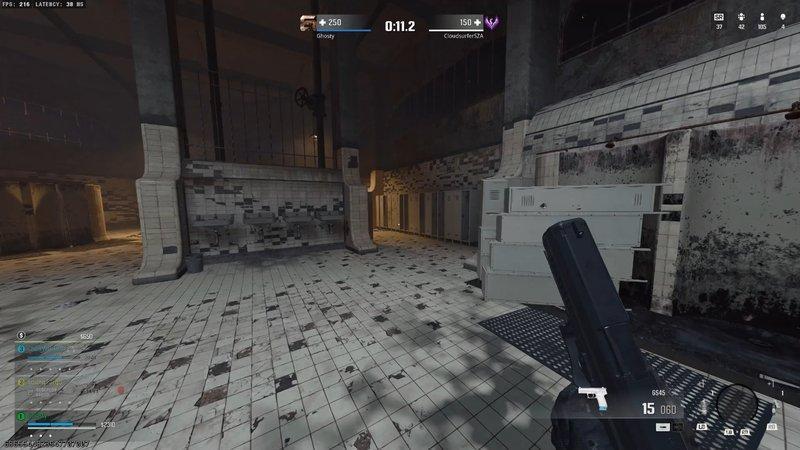
Warzone has earned a reputation for chewing through hardware that handles other shooter games at 200+ FPS. The IW 9.0 engine streams assets aggressively, shader compilation hammers your CPU after every patch, and the Verdansk update inside the Black Ops integration added asset bloat to an already heavy game. Even a Ryzen 7 paired with an RTX 4070 can dip below 100 FPS on the default preset.
The fix is not "buy a new graphics card." It's usually a few settings that look harmless but cost you 40 frames each. We’ll show you which sliders are doing the damage later.
Warzone PC System Requirements
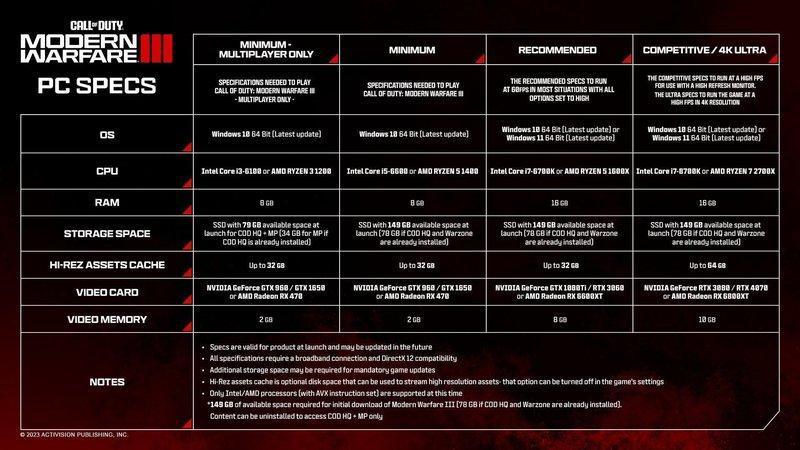
The official Warzone PC system requirements lay out a couple of tiers:
| Tier | GPU | CPU | RAM | What to Expect |
|---|---|---|---|---|
| Minimum | GTX 1650 | Intel i3-4340 | 8 GB | 60 FPS, 1080p Low |
| Recommended | GTX 1660 / RX 580 | i5-2500K / Ryzen 5 1600X | 12 GB | 90 to 120 FPS, 1080p Medium |
| Competitive | RTX 4060 / RX 7700 XT | i5-13600K / Ryzen 7 7700 | 16 GB | 144+ FPS, 1440p Low |
If you're on the minimum spec, it’s unlikely to get above 60 FPS at 1080p. If you're at the competitive build or better, you have no excuse for not running 144+ once the rest of this guide is dialed in.
Best Warzone Display Settings
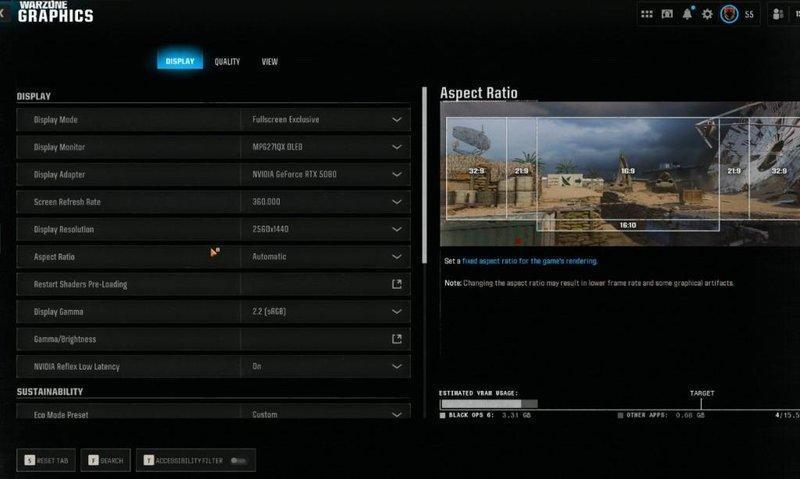
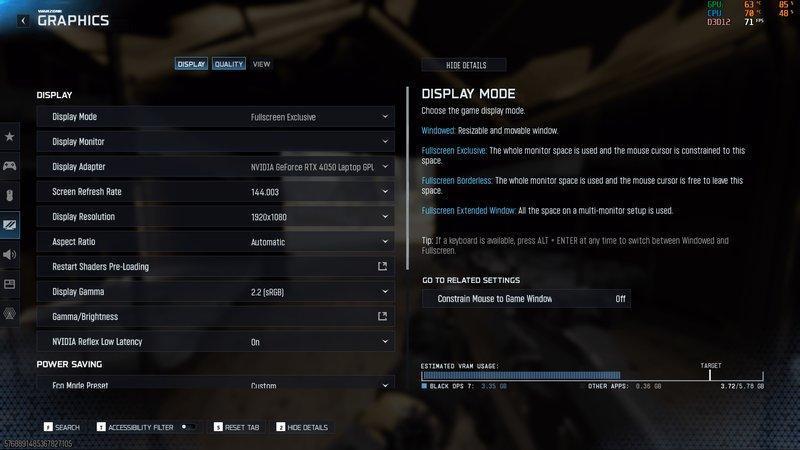
Display Mode: Fullscreen Exclusive. Borderless looks cleaner on a multi-monitor setup, but eats 5 to 10 percent of your frame rate for the Windows compositor.
Display Adapter: Pin it to your discrete graphics card. Laptop players especially: Warzone has been known to default to the integrated chip on first launch.
Refresh Rate: Whatever your monitor maxes out at. 144Hz, 240Hz, 360Hz, set it. The number of players running 165Hz panels at 60Hz because they never opened Display Properties is genuinely alarming.
Render Resolution: 100. Drop it to 85 only if you're chasing higher frame rates on a low-end card and you can stomach the slight blur it adds at a distance.
V-Sync (Gameplay and Menus): Off. Both of them. V-Sync caps your frames to your refresh rate and adds noticeable input lag, which is the worst thing you can do to a game where reaction time decides the engagement.
NVIDIA Reflex Low Latency: On + Boost. This shaves real milliseconds off your input lag with zero visual cost. If you're on an NVIDIA card and you're not using it, you're choosing to be slower.
Custom Frame Rate Limit: Set this to about 4 frames below your monitor's refresh rate (e.g., 141 on a 144Hz panel, 237 on a 240Hz panel). It keeps the GPU from overshooting and producing tearing without enabling V-Sync.
Your FPS should go up after these changes.
Best Warzone PC Graphics Settings
Texture Resolution: Low or Normal. The visual gap between Low and High is negligible from 50 meters out, and the FPS gap is enormous. High textures will also cap your VRAM at anything under 8GB.
Texture Filter Anisotropic: Normal. Past Normal, you're paying for marginal sharpness on textures you're sprinting past at full speed.
Particle Quality: Low. Smoke and grenade effects render simpler, and your gunfights stay readable.
Shader Quality: Low. One of the heaviest hitters in the entire menu, no contest.
Shadow Quality: Low. Shadows are a frame killer, and they don't actually help you see enemies any better. A handful of pros leave it at Normal so they can spot the shadow of a player creeping behind a wall, but the FPS cost outweighs that edge for almost everyone else.
Particle Lighting: Low.
Volumetric Quality: Low. Volumetric fog is gorgeous and absolutely destroys frame rates.
Deferred Physics Quality: Off. Useless cosmetic physics, expensive cost.
Weather Grid Volumes: Off.
Screen Space Reflections: Off.
Static Reflections: On. Cheap and basically free.
Tessellation: Off. The single biggest free-FPS toggle in the entire menu. Tessellation does nothing you can perceive in a gunfight and routinely costs 15-20 FPS on its own.
Depth of Field: Off. You want the background sharp so you can see the enemy crawling through it.
World Motion Blur and Weapon Motion Blur: Off, both of them. Motion blur is a competitive disability disguised as a graphical feature.
Film Grain: 0.00.
Anti-Aliasing: SMAA T2X is the standard. Filmic SMAA T2X is the cleanest cheap option. Avoid the raw TAA setting; it smears everything in motion.
Upscaling and Sharpening: FidelityFX CAS, sharpness around 75. This is the consensus pick over NVIDIA DLSS and AMD FSR for Warzone, aligning with what most pros use. CAS gives you a sharper image without the input lag DLSS introduces in this engine.
Lower settings here equal higher kill counts almost every time.
Best Warzone View Settings
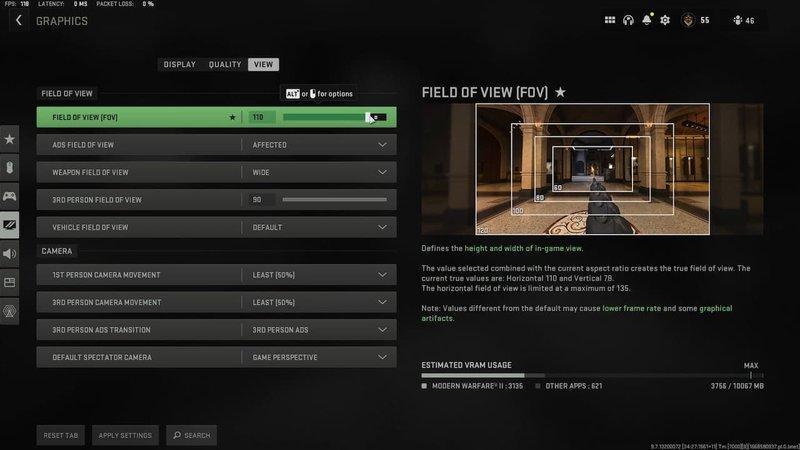
Field of View: 105 to 115. 105 is the sweet spot for hipfire and ADS balance; 115 is for maximum peripheral awareness, though you don't mind the slight enemy-shrinking effect at distance. Pick one and stop adjusting between matches.
ADS Field of View: Affected. Keeps your zoom consistent with hipfire and avoids the disorienting ADS pop that the Independent setting creates.
Camera Movement: Least (50%). Less head bob, less screen shake when you sprint, less nausea on long sessions.
1st Person Camera Height: Default.
Vehicle Field of View: 100. Driving is already chaotic; give yourself room to see what you're about to crash into.
The cleaner your screen, the faster you spot enemies.
Best Warzone Audio Settings
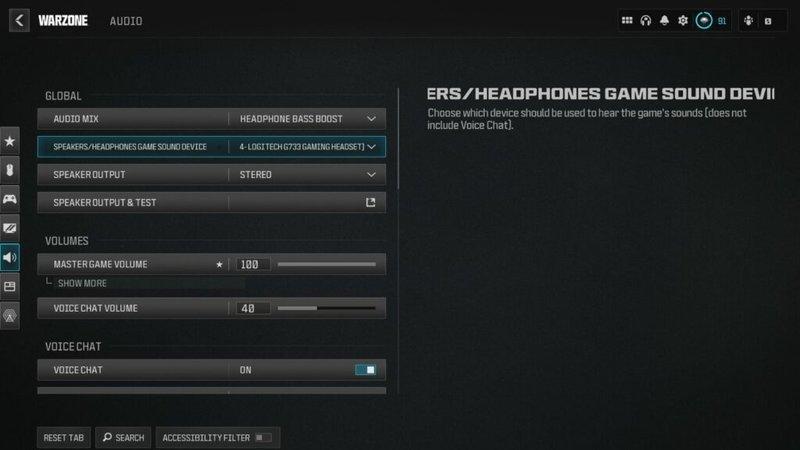
Audio Mix: Boost High. Pumps footstep frequencies and gunfire over background ambiance. Headphones almost always want Boost High. Treyarch Mix is a popular alternative if you find Boost High too sharp for long sessions.
Master Volume: 100.
Game Music Volume: 0. Music is for the lobby, not for hearing the AK reload behind a wall.
Dialog Volume: Around 50.
Effects Volume: 100.
Hit Marker Sound Effects: Classic.
Speaker Setup: Stereo Headphones if you're on a headset, which you should be. Surround virtualization tends to muddy the directional cues Warzone gives you.
Voice Chat Volume: Whatever lets you hear your squad without drowning out the game audio.
If you're stacking up settings to get higher FPS in Warzone but still missing footstep cues, none of the visual tweaks matter. Audio is half the game, and the best audio setup is worth more frames than any motion blur toggle.
Best Warzone Controller Settings
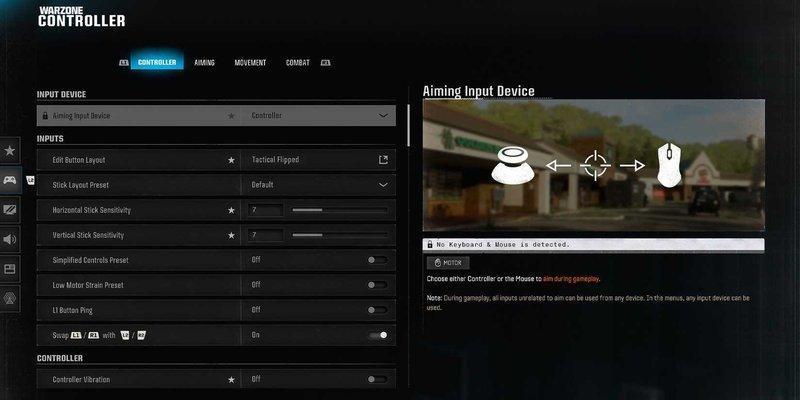
Horizontal Stick Sensitivity: 6 to 8 for most players. Higher if you're confident in your micro-adjustments, lower if you're whiffing close-range tracking.
Vertical Stick Sensitivity: Match horizontal, or 1 lower if you find vertical recoil control overshoots.
ADS Sensitivity Multiplier: 1.0 by default. Drop to 0.85 if you struggle to track enemies at long range with sniper scopes.
Aim Response Curve Type: Dynamic. Linear is faster on paper, but Dynamic is what most pros run on Warzone, including a chunk of the current Black Ops 7 esports field.
Deadzone (Left and Right Stick): The lowest your stick can handle without drift. Start at 0.05 and creep up if you notice phantom inputs.
Aim Assist: Standard.
Aim Assist Type: Black Ops. The Black Ops aim assist profile has been the consensus pick since BO6 dropped, and it carried straight into the BO7 integration.
Playing on PC with an Xbox controller via Bluetooth or USB? Your controller settings live in the exact same menu as Xbox console players. Same aim assist, same rotational aim assist, the only difference is that you might get a higher FPS than your console friends.
How to Update Your Graphics Drivers
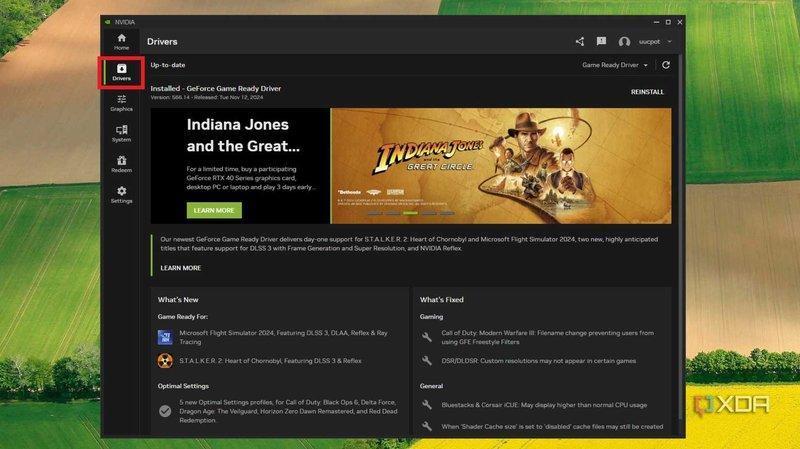
NVIDIA: Open the NVIDIA app (the replacement for GeForce Experience), go to Drivers, click Check for Updates, and install the latest Game Ready driver. If you don't have it, download the NVIDIA app from the official NVIDIA website.
AMD: Open AMD Software: Adrenalin Edition, head to Drivers & Software, and install the latest update. Make sure you grab the optional driver if there's a CoD-specific hotfix listed in the changelog.
Restart your PC after either update. If you skip the restart, your FPS may not change at all.
System-Level Tweaks That Boost FPS in General
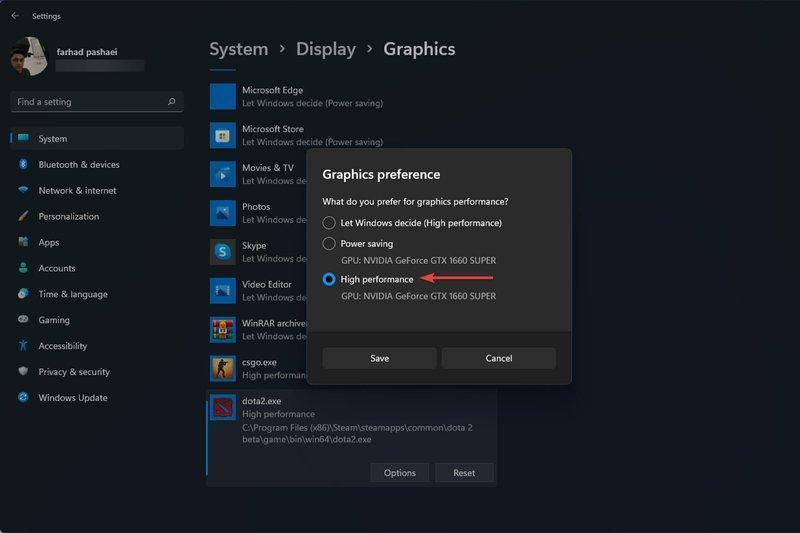
After the in-game menu changes, let’s go through the Windows ones.
- Set your Power Plan to High Performance. Settings, System, Power & Battery, Power Mode, Best Performance. On laptops, plug in.
- Enable Game Mode. Settings, Gaming, Game Mode, On. It tells Windows to throttle background processes when Warzone is in the foreground.
- Disable Fullscreen Optimizations on cod.exe. Right-click the executable, Properties, Compatibility tab, check "Disable fullscreen optimizations." This routes the game through the older fullscreen path, which handles input latency better.
- Close unnecessary background applications. Chrome with 30 tabs, Discord overlay, Spotify, OBS preview. All of them eat CPU and RAM that Warzone would happily use.
- Enable Hardware-Accelerated GPU Scheduling. Display Settings, Graphics, Default graphics settings. It offloads more rendering work to the GPU and frees up CPU resources.
- Update Windows. Last on the list because it's the slowest fix, first in importance because half the FPS drops in Warzone come from background Windows update services running mid-match.
If you've done all of this and you're still getting frame rate drops, your bottleneck is hardware, not configuration. At that point, a CPU upgrade usually buys you more frames than a graphics card upgrade does on Warzone, because the game is famously CPU-bound.
Settings Get You the Frames. Skill Gets You the Wins.
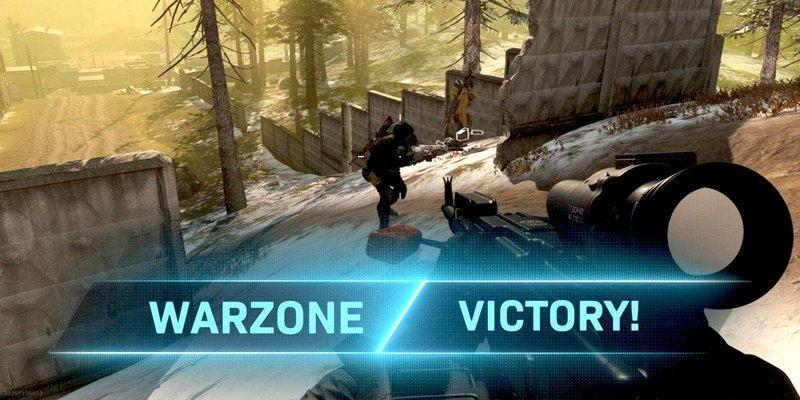
Dialing in the best Warzone settings for PC can move you from 60 to 160 FPS overnight, and that's the easy half of getting better. The harder half is what you do with the frames once you have them: positioning, rotations, gunfight discipline, audio reads, knowing when to push and when to disengage.
If you want a shortcut, booking a session with a pro Call of Duty Warzone coach on WeCoach gives you a top-ranked player watching your gameplay live and clocking the exact habits costing you the win.
Pair that with the season's loadout meta breakdown and a few weeks of structured Warzone training tips, and your placements will move faster than any FPS counter ever could.
Turn knowledge into rank
Get a verified pro to review your gameplay and give you a plan.