How to Uninstall VALORANT in 2026
Table of Contents
Uninstalling Valorant should be as simple as a few clicks in your App Manager, right? Unfortunately, uninstalling it is not as straightforward as most other games.
Whether you want to say farewell to Valorant or solve bugs with a quick reinstall, we've got you covered. Here’s a complete list of methods and extra tips to help you fully uninstall Valorant in 2026.
Before You Uninstall Valorant, Disable Vanguard First
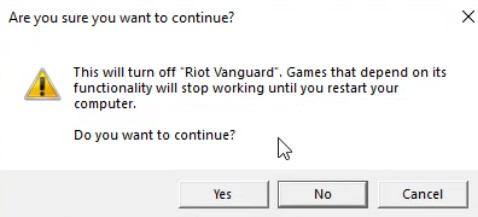
Uninstalling Valorant is more complicated than deleting typical games because Valorant includes Riot’s anti-cheat system, Vanguard. Valorant won’t truly be uninstalled unless Riot Vanguard is disabled.
Before uninstalling Valorant:
- Exit the Riot Client
- Close Vanguard from the system tray
- Restart your PC if Vanguard doesn’t deactivate
- Be sure the Vanguard services (vgc and vgk) are not running
Doing these steps in order will help you avoid errors while removing Valorant. So, don’t skip out on this part for any uninstallation method you choose.
1. Standard Valorant Uninstall Method
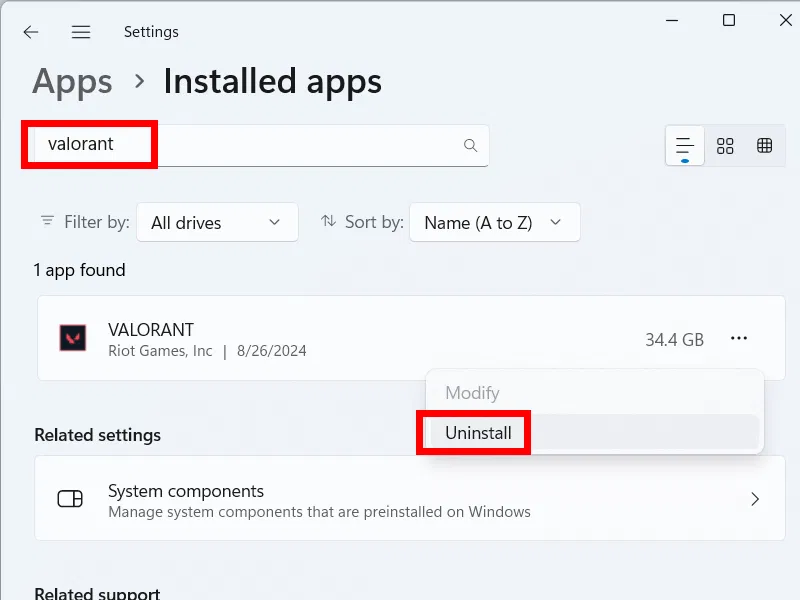
Once you disable Vanguard, it’s time to try the first and most straightforward method: the basic uninstall. This should be your first move before attempting any of the other uninstallation tips we mention.
Step-by-Step Instructions:
- Close the Riot Client and Vanguard: Right-click both icons in your taskbar and click Exit.
- Open Windows Settings: Press Windows Key + I, select Apps, and then select Installed Apps.
- Uninstall Riot Vanguard: Find Riot Vanguard, click Uninstall, and select Confirm.
- Uninstall Valorant: Scroll to VALORANT, click Uninstall, and follow the prompts.
- Restart your computer. This will make sure Vanguard’s background services are removed.
2. Complete Uninstallation (Total Removal Method)
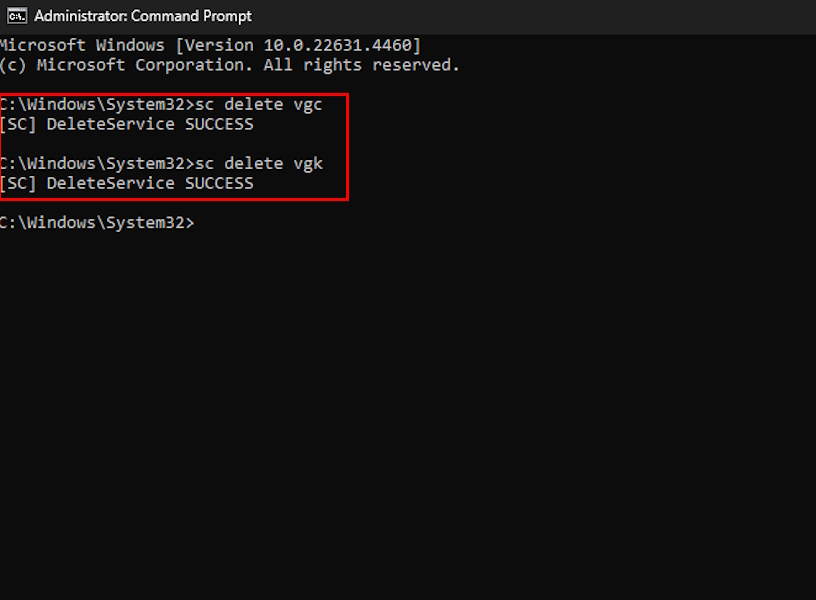
If the first method did not work, try completely removing files related to Valorant from your PC. Keep in mind that you need to be very careful when using this method. You may accidentally delete an important file from your computer unrelated to Valorant.
Mistakes can break your system. ONLY do this if you know what you're doing. Otherwise, you may seek third-party assistance.
1. Remove Vanguard Services Manually
1. Open Command Prompt (Run as Administrator)
2. Enter the following commands:
sc delete vgc
sc delete vgk
These commands delete Vanguard’s services. Be very careful not to enter other commands.
3.Restart your PC.
2. Delete Remaining Valorant and Riot Files
After you input the commands to remove Vanguard services, you need to remove Valorant and Riot files to eliminate any trace of the game from your PC. Manually remove the following folders if they still exist:
- C:\Riot Games\
- %localappdata%\VALORANT
- %programdata%\Riot Vanguard
- %appdata%\Riot Games
3. Optional: Clean Registry Entries
Since this is an optional step, we recommend that only tech-savvy users try this method. If you are not careful, you could select the wrong entries. Luckily, most people can skip this step.
- Open regedit
- Search for Valorant, Vanguard, and Riot Games
- Delete only relevant entries
3. Third-Party Uninstall Tools for Valorant
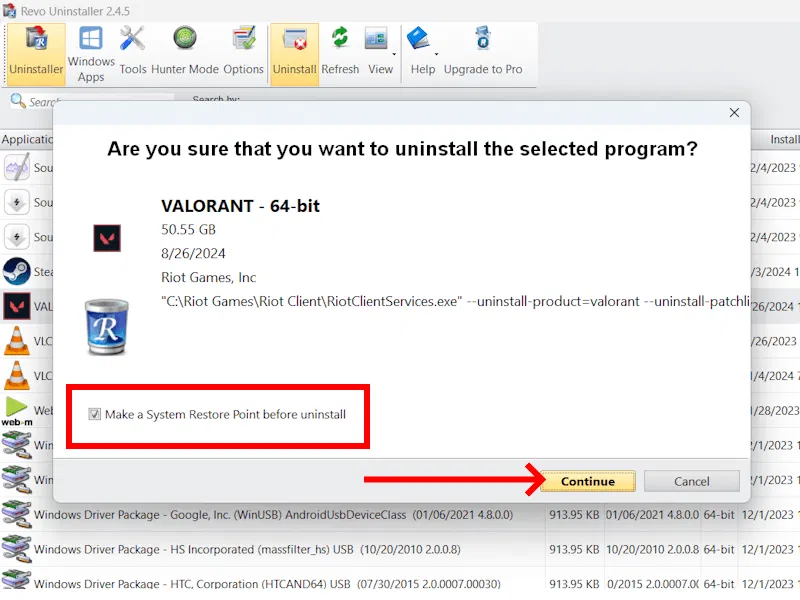
In a worst-case scenario, Valorant might refuse to uninstall, or your Riot Client could be corrupted. If methods 1 and 2 do not work, you can get third-party uninstallers to eliminate stubborn Valorant files.
Recommended Tools:
- Revo Uninstaller
- IObit Uninstaller
- Geek Uninstaller
How to Use The Third-Party Uninstallers:
- Install the uninstaller tool
- Click Valorant and Riot Vanguard
- Choose Advanced Uninstall/Deep Scan
- Delete leftover files and registry traces
This option is only recommended when Valorant won’t uninstall using the default Windows methods.
What to Do Before Uninstalling Valorant
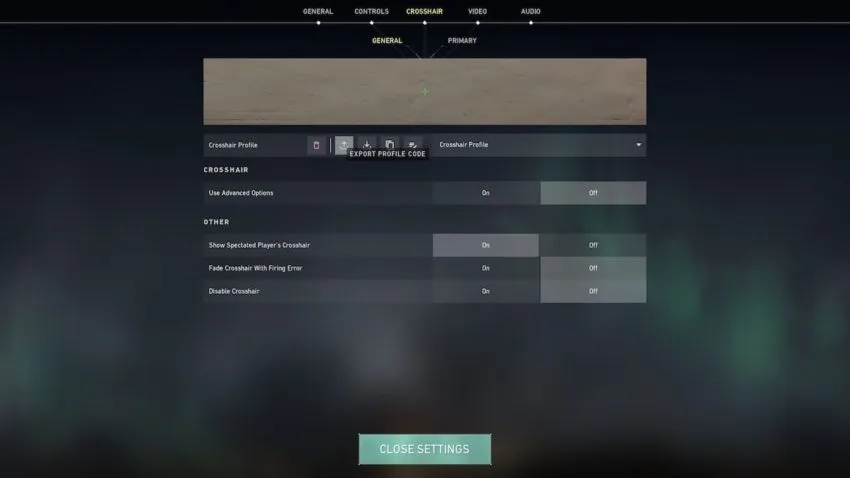
You do not want to lose any precious moments or critical settings. If you plan to reinstall Valorant, it is best to prepare your account info and game settings. Here are some tips to follow before you uninstall Valorant:
- Export or screenshot your Valorant settings. Crosshair, sensitivity, and keybinds will reset after a reinstall.
- Confirm your Riot account login. You’ll need your credentials to reinstall.
- Check available disk space. Valorant requires space for game files, updates, and Vanguard.
- Save highlight clips or screenshots. Some recording tools store clips inside the game directory.
Why You Might Need to Uninstall Valorant
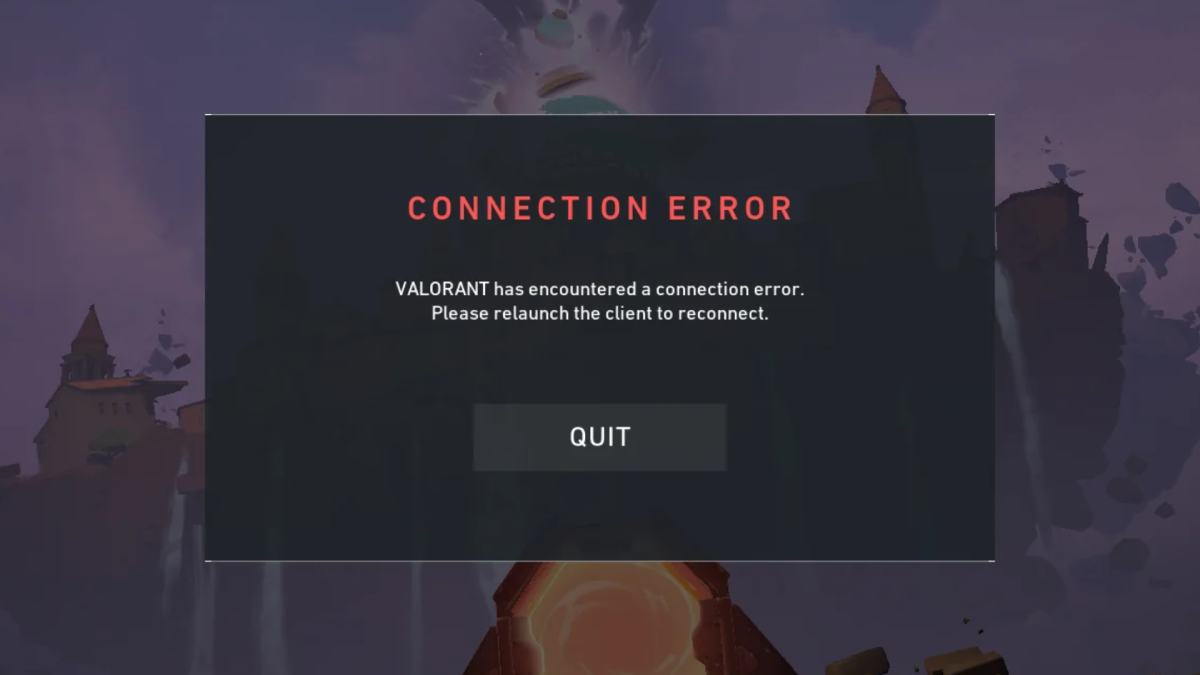
Most players want to uninstall Valorant because it’s not their cup of tea, or they're unable to reach a specific rank (there's coaching for that!). However, many other gamers simply uninstall Valorant to get rid of bugs that reinstalling the game might fix.
For example. players commonly uninstall Valorant to fix:
- VAN9001, VAN9002, VAN140 errors
- Vanguard Secure Boot or TPM issues
- Game crashes or freezes
- Patch loops or corrupted updates
- Riot Client errors
- Game not launching
- System performance problems
- File conflicts after GPU/driver upgrades
A fresh reinstall solves most persistent problems, but it’s not a guaranteed solution. If reinstalling the game doesn’t work, you might need to:
- Contact customer support to report the bug
- Check your Wi-Fi
- Check your PC/laptop’s specs to see if it is optimized to support the game
Conclusion
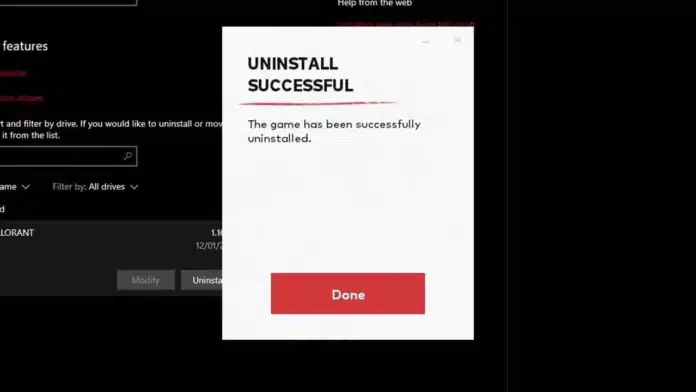
Properly removing Valorant requires uninstalling Vanguard first and deleting all system files. Whether you're trying to solve errors or say goodbye to the game, these steps ensure a complete removal every time. By following the standard uninstall instructions, using the total removal method, or installing a trusted third-party uninstaller, you can remove Valorant from your PC.
Arlo is a gaming content writer and analyst covering League of Legends, Valorant, and competitive esports strategy.
All articles by ArloTurn knowledge into rank
Get a verified pro to review your gameplay and give you a plan.